Turn Mahersaham Into an iPhone App: How to Add It to Your Home Screen

Many users ask us: "Does Mahersaham have an app? I can't find it in the App Store." The good news is you don't need to download anything. You can turn mahersaham.com into an "app" right on your iPhone Home Screen in under 30 seconds.
Short answer: open mahersaham.com in Safari, tap the ••• button (or the Share icon on older iOS), choose Share, then Add to Home Screen and tap Add. The Mahersaham icon appears on your Home Screen and opens full screen just like a regular app.
In this tutorial we walk through every step with pictures, including the differences between iOS 26 and older iOS versions. This is part three of the Mahersaham tutorial series. If you're new, start with a tour of every Mahersaham menu and how to sign up for a Mahersaham account.
Why Add Mahersaham to Your Home Screen?
Mahersaham is a web platform, not an App Store app. But the site ships with a web app manifest and a dedicated icon, so when you add it to your Home Screen, your iPhone treats it almost exactly like a real app. The benefits:
- One tap to open - no need to launch Safari, type the address or dig through bookmarks every time you want to check the screener or stock research.
- Full screen - no Safari address bar or buttons, so charts and tables get more room.
- No storage used - nothing large is downloaded, and you always get the latest version straight from the website.
- Stay signed in - after logging in once in web app mode, you usually stay logged in for future sessions.
Before you start, make sure you're using the Safari app. According to MacRumors, the Add to Home Screen option is most reliably found in Safari. If you open a link from inside WhatsApp, Telegram or Facebook, the page opens in that app's built-in browser, where this option is usually missing. Copy the link and open it in Safari instead.
Step 1: Open mahersaham.com in Safari

Open Safari, type mahersaham.com into the address bar and wait for the page to fully load. You can add it from the homepage, or from whichever page you use most, such as the Screener or Dashboard. The page that's open when you add it becomes the first page you see each time you tap the icon.
Tip: If you're a Gold Member or already have an account, sign in on Safari first to make things easier.
Step 2: Tap the Three-Dot Button (•••) and Choose Share
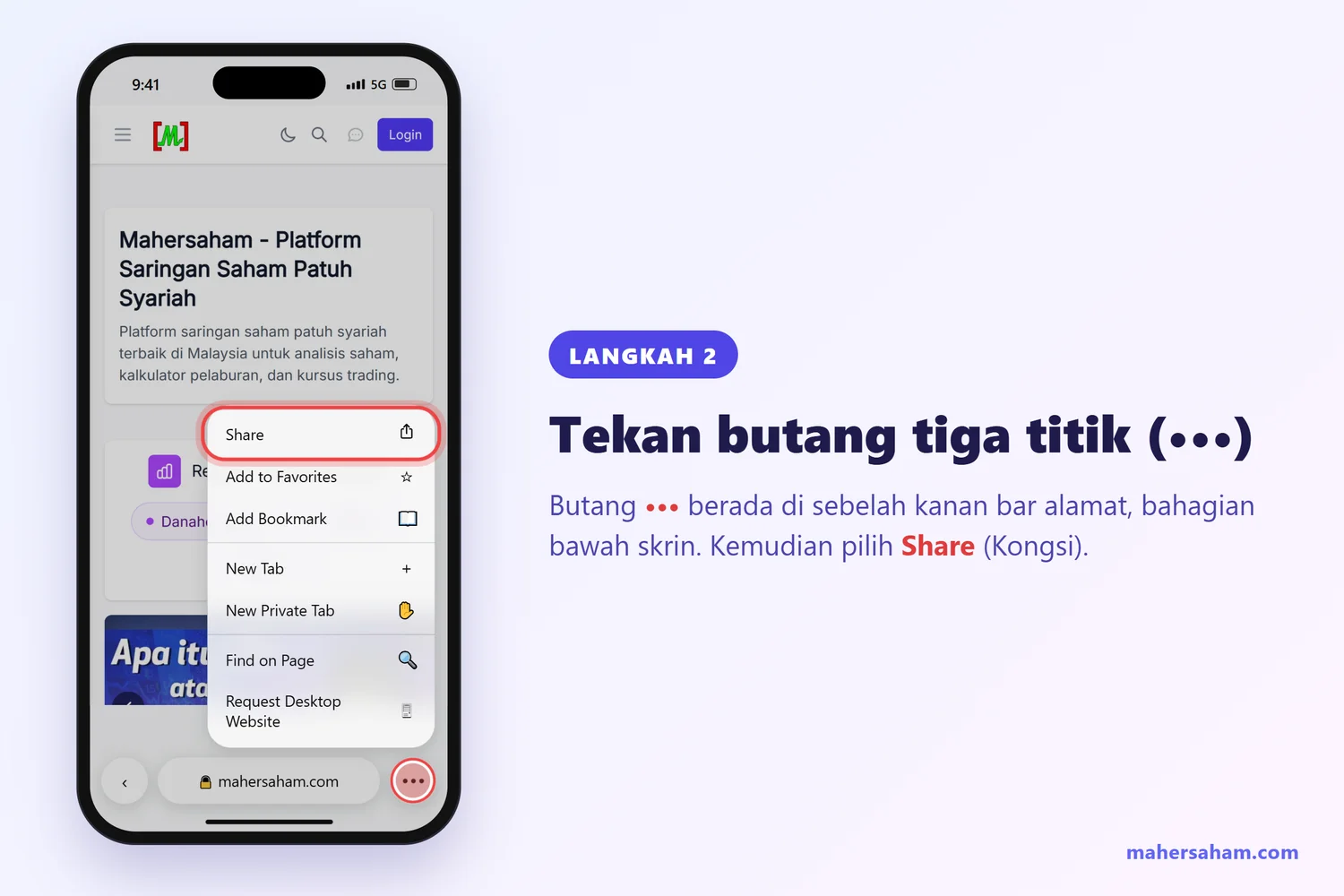
In iOS 26, Safari got a redesign and the Share button now lives inside the three-dot menu. As MacRumors reported on the Safari changes in iOS 26, many buttons that used to sit on the bottom bar have moved into this menu.
Tap the ••• button to the right of the address bar, then choose Share (called Kongsi if your phone is set to Malay).
Using iOS 18 or Older?
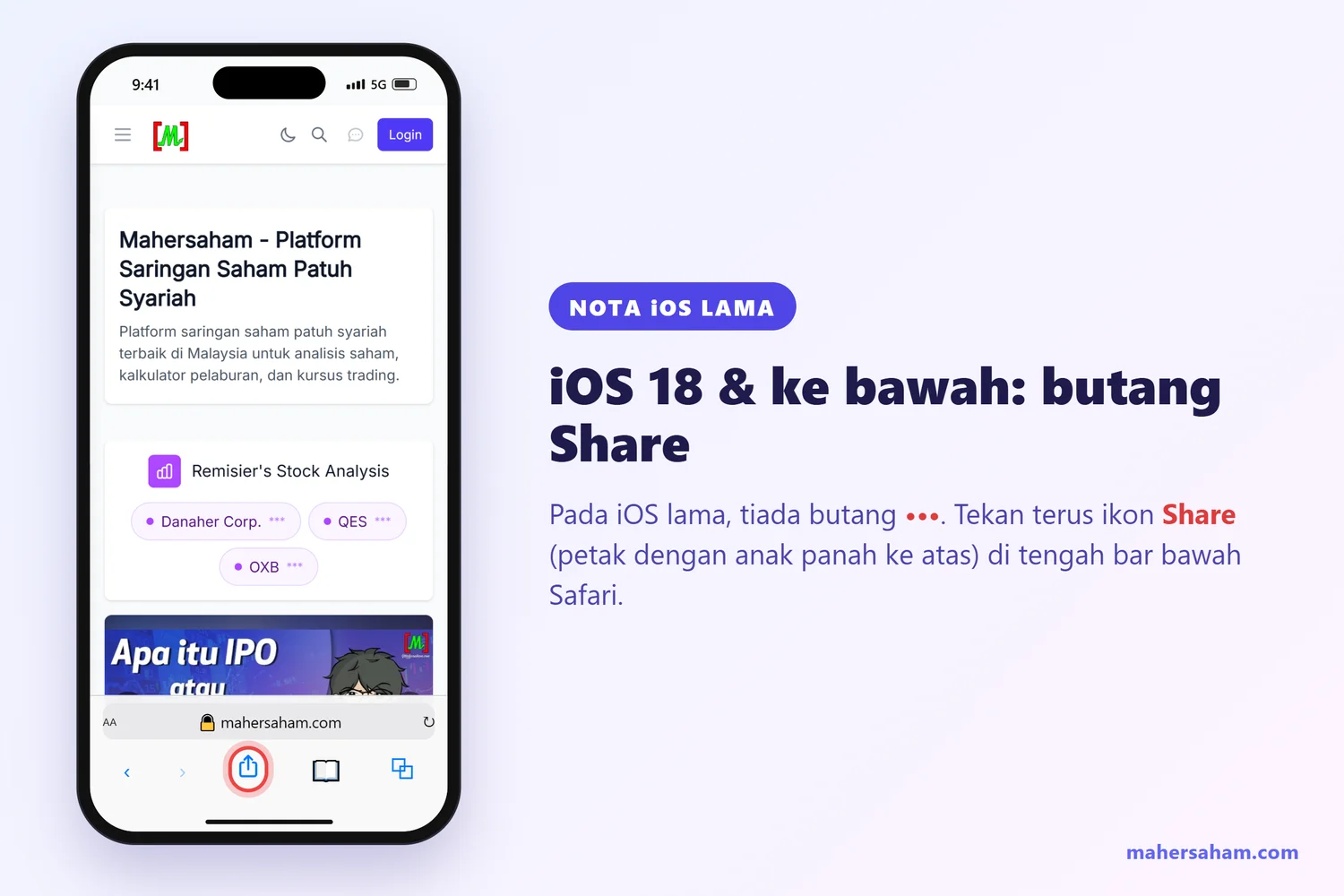
On iOS 18 and earlier there's no three-dot button. The Share icon (a square with an arrow pointing up) sits in the middle of Safari's bottom bar. Tap it and continue to Step 3. Not sure which iOS you have? Go to Settings > General > About and check the iOS Version line.
Step 3: Choose "Add to Home Screen"
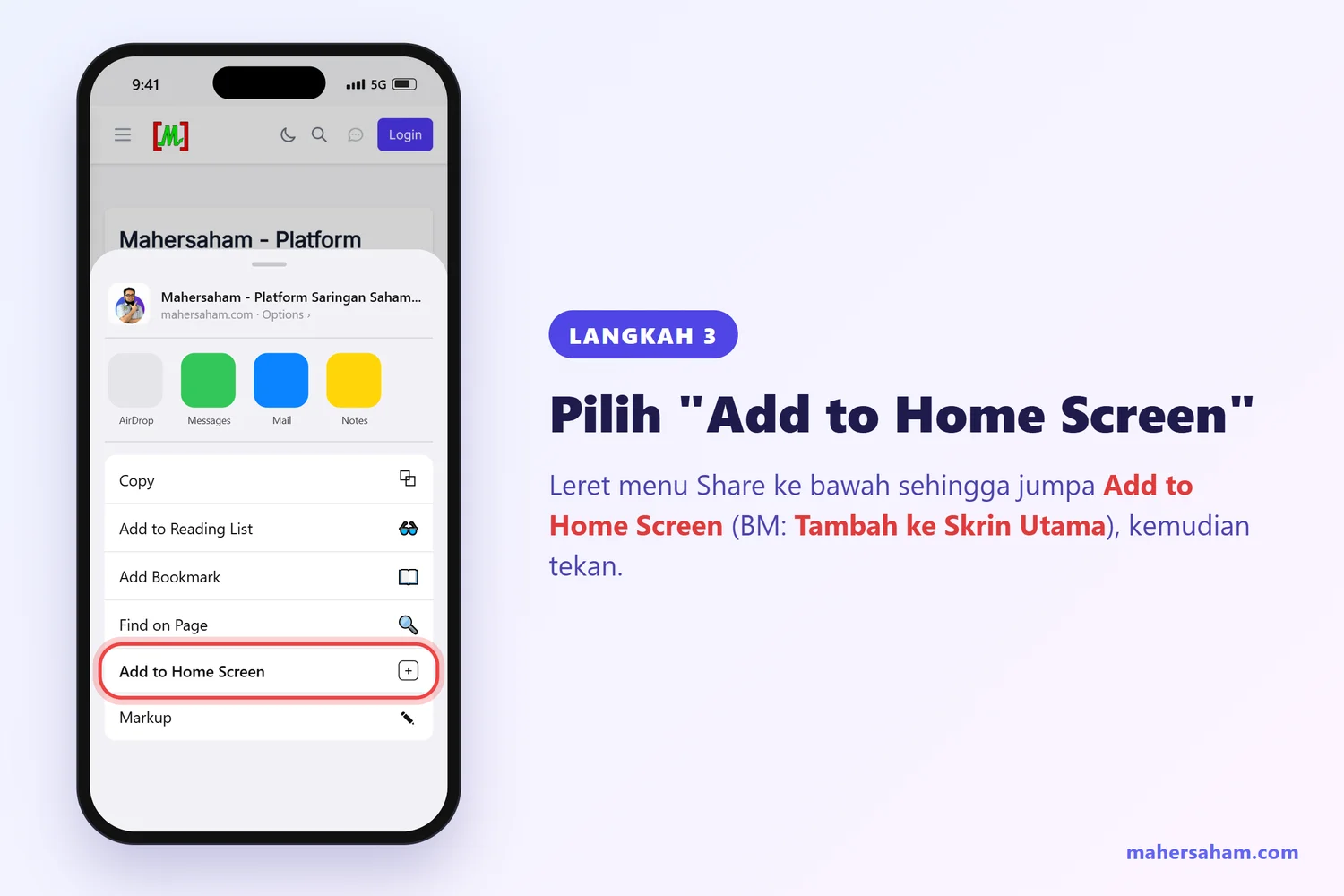
The Share sheet slides up from the bottom. The top part lists apps to share with (AirDrop, Messages and so on). Ignore that and scroll down until you see Add to Home Screen (Malay: Tambah ke Skrin Utama). Tap it.
If the option isn't there, scroll to the very bottom of the sheet, tap Edit Actions and add Add to Home Screen back to the list.
Step 4: Keep "Open as Web App" ON, Then Tap Add
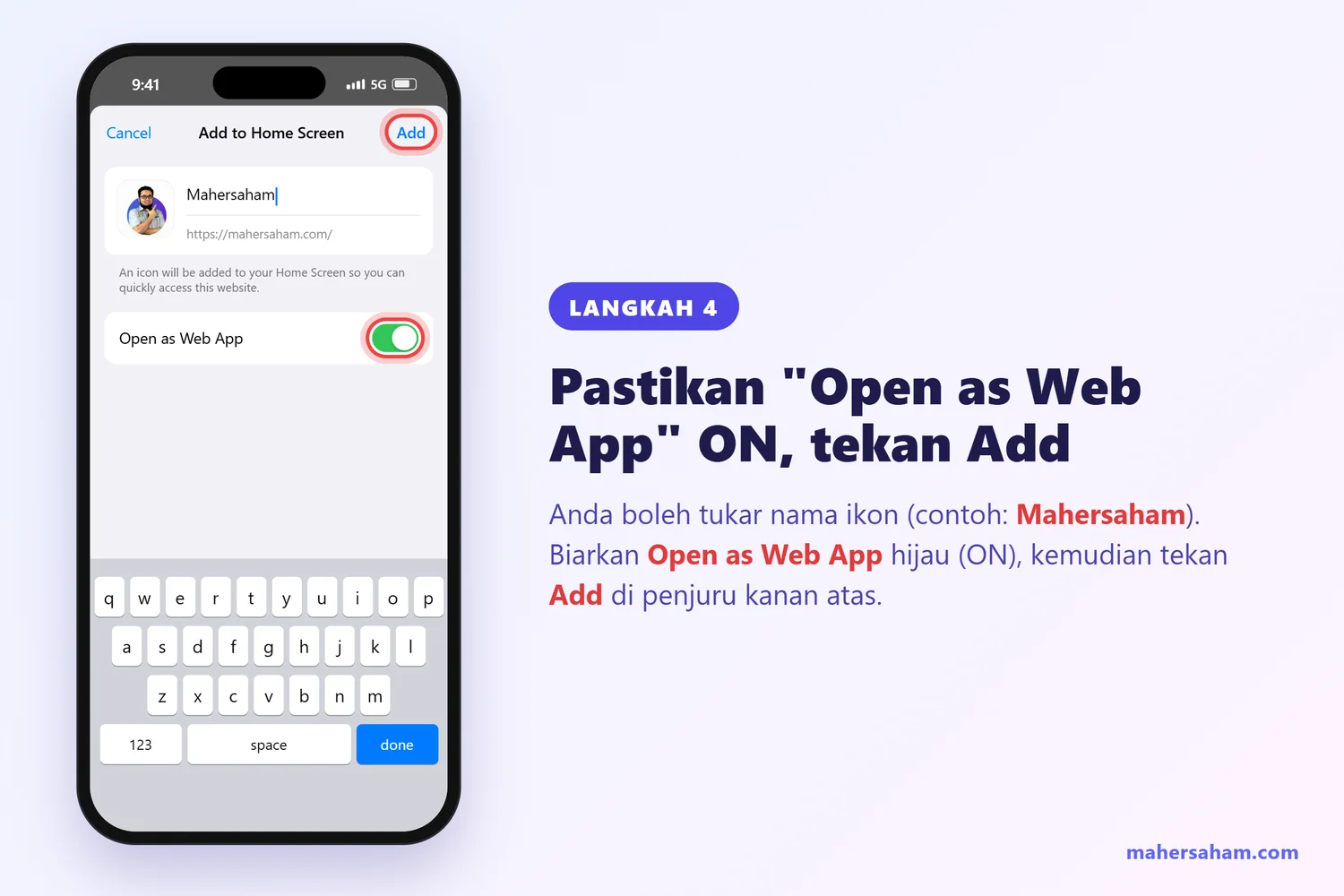
The Add to Home Screen dialog shows:
- Icon - the official Mahersaham icon provided by the website. Nothing to do here.
- Name - the label shown under the icon. You can change it to something short like Mahersaham so it isn't cut off.
- Open as Web App - a new switch in iOS 26. Leave it green (ON).
The Open as Web App switch is what makes Mahersaham open like a real app. According to Apple's WebKit team, from Safari 26 every site added to the Home Screen opens as a web app by default, and you can turn the switch off if you'd rather it open in regular Safari like a bookmark. For the best experience, leave it on.
Finally, tap Add in the top-right corner.
Step 5: The Mahersaham Icon Is Now on Your Home Screen
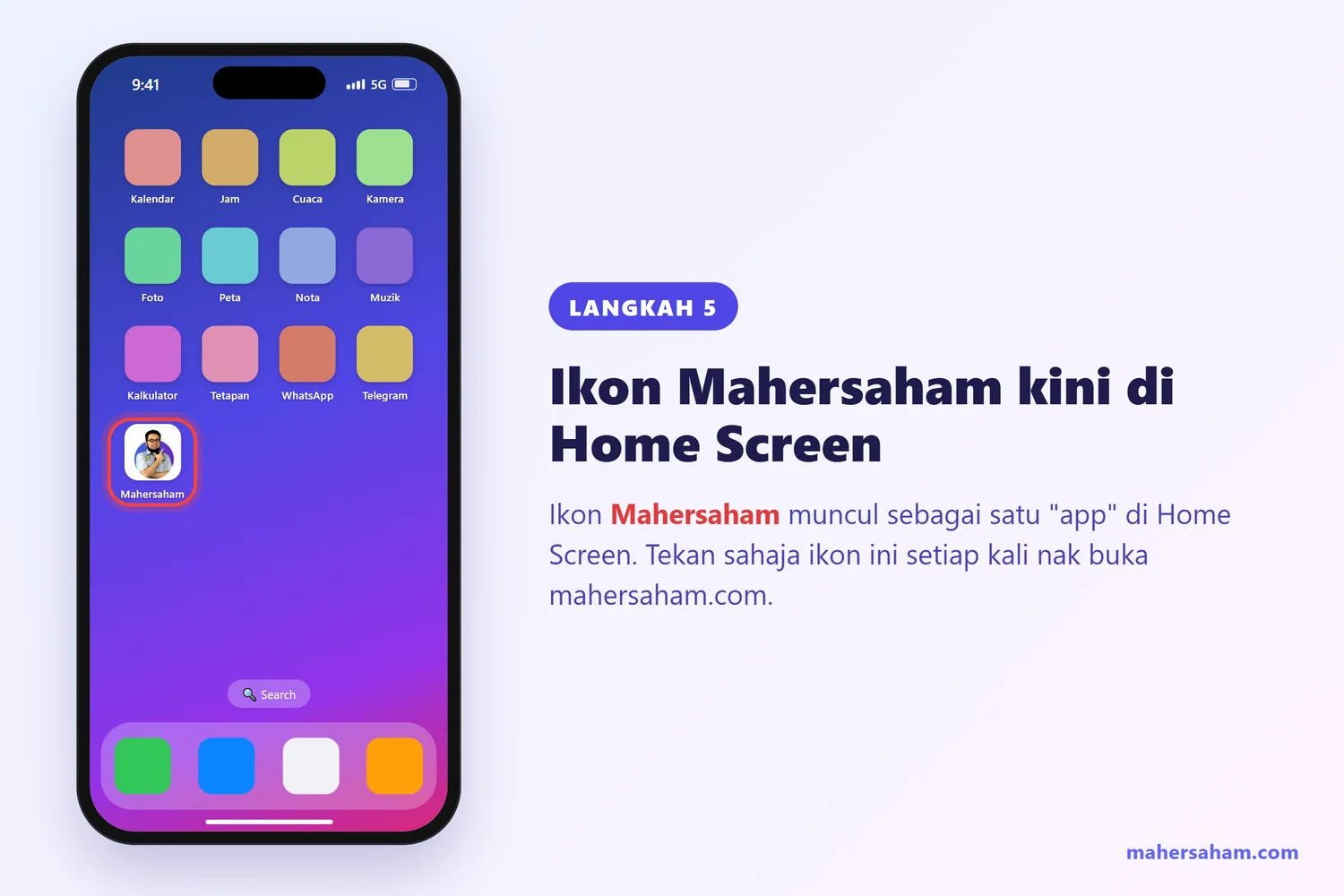
Done! You're taken straight to the Home Screen and the Mahersaham icon appears in the first empty spot. Just like other apps, you can long-press and drag it to any page, put it in a folder (for example a "Stocks" folder with your broker app), or place it in the dock for the fastest access.
Step 6: Open Mahersaham Full Screen Like an App
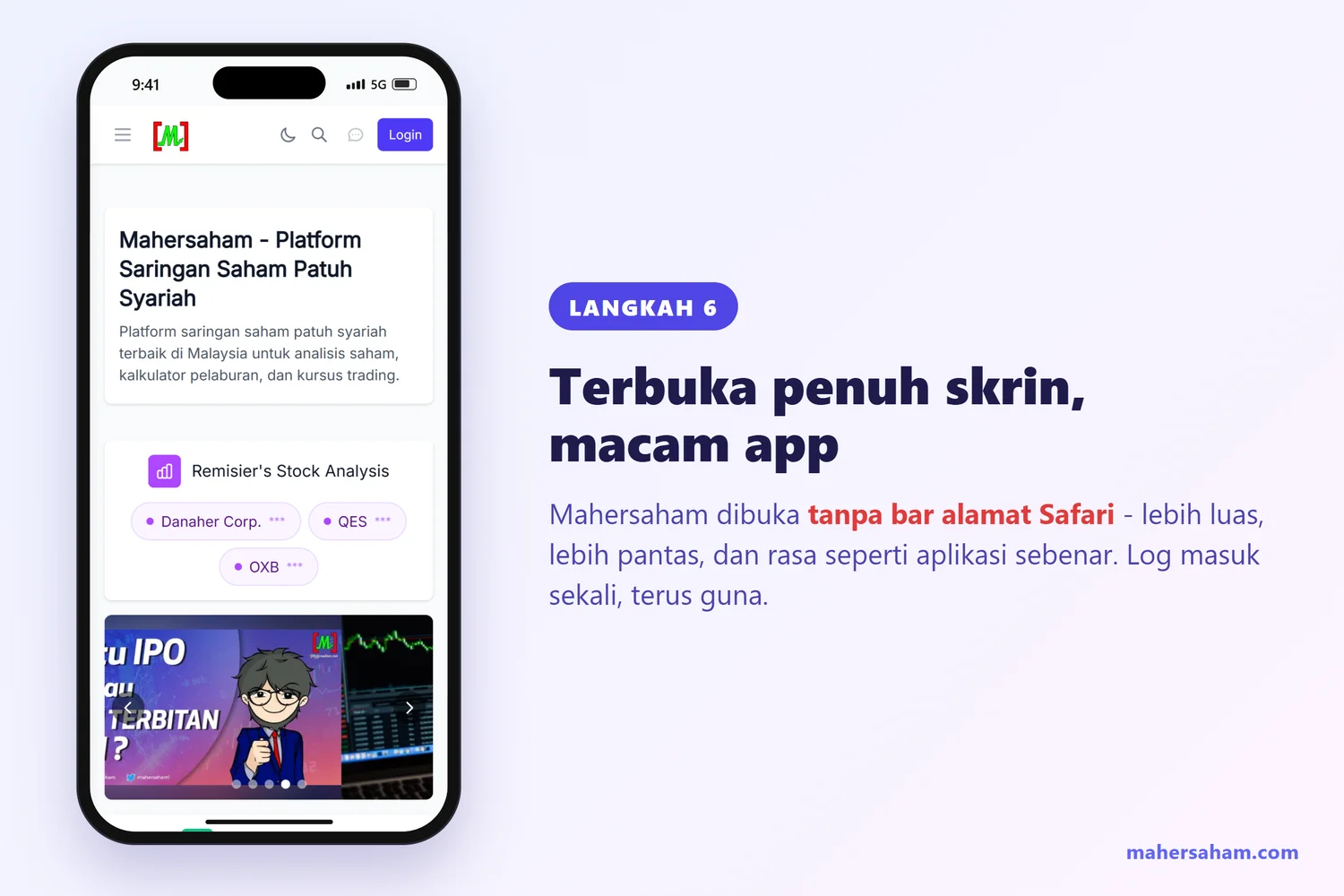
Tap the Mahersaham icon. Notice the difference: no address bar and no Safari buttons at the bottom. The whole screen is used for Mahersaham content. That's because our site sets the standalone display mode in its manifest, a feature covered in Apple's documentation for web developers.
The first time you open it in web app mode, you may need to log in again because web apps keep a separate session from Safari. After that, you'll stay signed in.
You can now jump straight into the Shariah-compliant stock screener, read stock research or track your portfolio in one tap, just like opening the broker apps we listed in 9 must-have apps for stock investors.
Common Problems & Fixes
- No Add to Home Screen option - you're most likely in the in-app browser of WhatsApp, Telegram, Instagram or Facebook. Tap the compass icon or "Open in Safari", or copy the link and open it in Safari.
- The icon shows a letter or a page screenshot - the page hadn't fully loaded when you added it. Delete the icon, reopen mahersaham.com, wait a few seconds and repeat.
- The icon opens in Safari, not full screen - Open as Web App was switched off. Delete the icon and add it again with the switch on.
- Asked to log in again - normal the first time only. Web app mode doesn't share cookies with Safari.
Frequently Asked Questions (FAQ)
Is there a Mahersaham app in the App Store?
Mahersaham is a web platform. By adding it to your Home Screen you get an app-like experience without downloading anything from the App Store, and you always get the latest version automatically.
Is this free?
Yes. Adding Mahersaham to your Home Screen costs nothing and uses no meaningful storage.
Can I use Chrome on iPhone to add it to the Home Screen?
Newer versions of Chrome for iOS support this through the Share button, but Safari is the most reliable way. We recommend Safari for the best result.
How do I remove the Mahersaham icon from my Home Screen?
Long-press the icon, choose Delete Bookmark or Remove, then confirm. Your Mahersaham account is not affected.
Will I get notifications?
Mahersaham doesn't currently send push notifications through the web app. For quick stock alerts, use the Mahersaham Support Bot on Telegram.
What about Android phones?
Open mahersaham.com in Chrome, tap the three-dot button in the top-right corner, then choose Add to Home screen or Install app. The process is almost the same.
Can I access Gold Member content through this icon?
Yes. Once you log in with your Gold account in web app mode, all premium content such as stock research and thematic reports is available as usual.
Conclusion
With five simple steps in Safari, mahersaham.com can live on your iPhone Home Screen and open full screen like a real app. Keep Open as Web App switched on, and you're one tap away from the screener, stock research and your portfolio.
Getting to the platform is now as easy as opening an app. Next, make sure you're ready to invest.
Open a CDS trading account through Mahersaham to start investing on Bursa Malaysia as well as overseas markets such as US and Hong Kong stocks.
Just starting out? Download the free Stock Market Basics Ebook to master the fundamentals first.
Further Reading
- How to Use Mahersaham: Every Menu From Dashboard to Events
- New to Mahersaham? How to Sign Up & Upgrade to Gold Member
- The 4-Quadrant Matrix: Stock Screening Basics on Mahersaham
- How to Use the Mahersaham Support Bot: 11 Stock Analysis Functions on Telegram
- 9 Must-Have Apps for Stock Investors in Malaysia