M+ Global App Crash, Error or Hang? Here's How to Troubleshoot

M+ Global App Crash, Error or Hang? Here's How to Troubleshoot
You open the M+ Global app, but the screen turns white. Or the app suddenly crashes after login. Maybe the loading icon keeps spinning endlessly. Don't panic - technical issues like these are common and most can be resolved on your own without contacting customer support.
This article is compiled from over 340 real questions received by the Mahersaham support team. We list every common problem along with its causes and step-by-step solutions.
Problem 1: M+ Global App Crash or Force Close
This is the most frequently reported issue by clients. The app suddenly closes itself (force close) as soon as it's opened, or crashes in the middle of trading.
Common Causes
- Outdated app version - older versions often have bugs that have already been fixed in the latest update
- Full phone storage - when your phone storage is nearly full, the app may not function properly
- Incompatible phone OS - M+ Global requires a minimum of Android 12 or above to function
How to Fix
- Update the app to the latest version on Google Play Store or App Store
- Clear cache for M+ Global:
- Android: Settings > Apps > M+ Global > Storage > Clear Cache
- iOS: Delete the app and reinstall (iOS doesn't have a cache-only clear option)
- Restart your phone after clearing cache - this frees up RAM and clears background processes
- If it still crashes after all the steps above, reinstall M+ Global completely
- As a temporary alternative, use the web version in your browser: visit mplusglobal.com.my
Problem 2: Blank Screen or White Screen
You open M+ Global but the screen is empty - white or black with no display. This is among the most concerning issues because you can't see anything at all.
Common Causes
- Weak internet connection - the app requires a stable internet connection to load market data
- Corrupted app cache - damaged temporary data can cause the display to fail to load
- M+ server under maintenance - sometimes M+ servers undergo scheduled maintenance
How to Fix
- Make sure your WiFi or mobile data is stable - try opening another website to confirm connectivity
- Fully close the app and reopen it (force close from recent apps, not just minimize)
- Clear cache following the steps in Problem 1
- Try using the web version in your phone browser: mplusglobal.com.my
- If all devices experience the same issue, the M+ server is likely down - wait 15-30 minutes and try again
- Check Malacca Securities Facebook page for any system maintenance announcements
Problem 3: Slow Loading or Lag
The M+ Global app opens successfully but is extremely slow. Stock prices update late, orders take long to go through, or the loading screen keeps spinning.
Common Causes
- Slow internet connection - especially when using mobile data in areas with weak coverage
- Too many apps running simultaneously - consuming your phone's RAM
- Low phone RAM - phones with 2GB RAM or less may struggle to run M+ Global smoothly
How to Fix
- Close other apps that aren't in use - swipe away from recent apps
- Ensure your internet connection is stable - WiFi is usually more stable than mobile data for trading
- Restart your phone to free up RAM
- If using an older phone with low specs, try the web version on a laptop or PC browser
- For a smoother trading experience, ensure your phone has at least 3GB of RAM
Problem 4: Error Messages When Logging In
You try to log in but receive confusing error messages. Here's a list of common error messages and how to handle them.
Error List & Solutions
| Error Message | Meaning | Solution |
|---|---|---|
| "User not activated" | Account not yet activated | Check your email (including Spam/Junk folder), click the activation link sent by M+ |
| "Invalid credentials" | Wrong password or User ID | Reset password via @mahersahamplatform on Telegram |
| "Account suspended" | Account has been locked | Contact Mahersaham CS with your client code |
| "Email already in use" | Email already registered | Contact CS - there may be a duplicate account in the system |
| "Session expired" | Login session has timed out | Log in again - this is normal after a period of inactivity |
If you receive an error message not listed above, take a screenshot and send it to CS for more accurate diagnosis.
Problem 5: Data Not Syncing or Portfolio Not Updating
You've bought or sold shares but your portfolio still shows old data. Or your trust balance hasn't changed after making a deposit.
Common Causes
- Data takes time to sync - especially after buy/sell transactions
- T+2 settlement not yet complete - on Bursa Malaysia, settlement takes 2 business days after the transaction
- App needs refresh - sometimes data doesn't auto-refresh
How to Fix
- Pull down to refresh on the portfolio screen - pull the screen down to load the latest data
- Log out and log in again - this forces the app to reload all data from the server
- Wait for T+2 settlement - proceeds from share sales take 2 business days to reflect in your available trust balance
- Available Trust Withdraw will update after settlement is complete
- For FPX deposits, ensure you've received a bank confirmation email before expecting the funds to appear
According to Bursa Malaysia, all share transactions on Bursa follow a T+2 settlement cycle. This means if you sell shares on Monday, the funds will only be available on Wednesday.
Problem 6: Phone Not Compatible with M+ Global App
The M+ Global app requires certain minimum specifications to function. If your phone is too old, the app may not install or may crash frequently.
Minimum Requirements
- Android: Version 12 or above (released in 2021)
- iOS: iPhone 8 or above with the latest iOS
How to Check Your Android Version
- Open Settings > About Phone > Android Version
- If your version is below 12, your phone does not support M+ Global app
If Your Phone Isn't Supported
- Use the web version on your phone browser: visit mplusglobal.com.my - all trading functions are available
- Or use a laptop/PC to access the web version on a bigger screen
- Consider upgrading your phone if you trade frequently - Android phones priced RM500-700 already support Android 12+
The M+ Global web version functions exactly the same as the app. The only difference is no push notifications for price alerts and order execution.
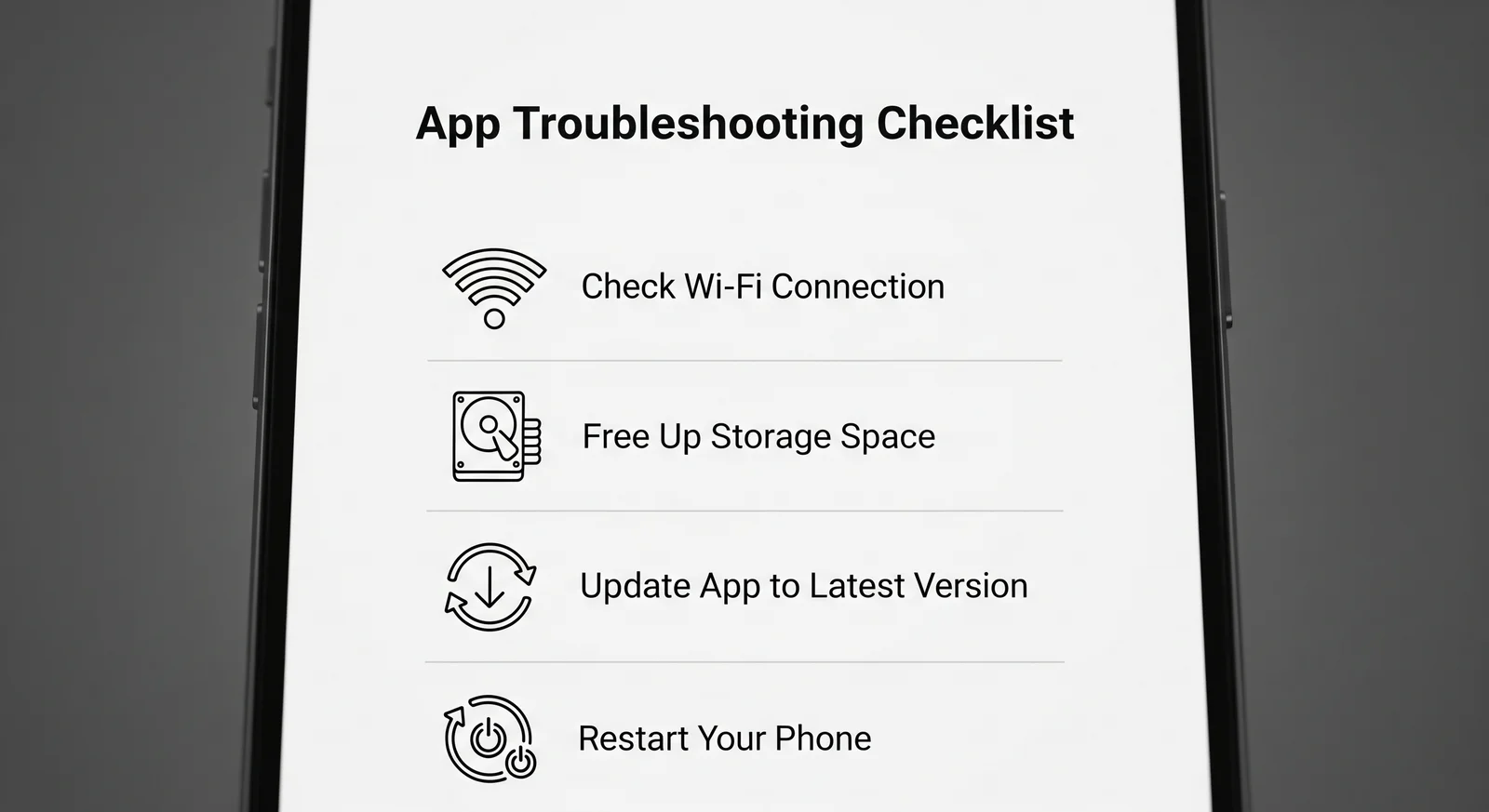
Troubleshoot Checklist Before Contacting CS
Before contacting customer support, make sure you've tried all these steps:
- Have you updated the app to the latest version?
- Have you cleared the app cache?
- Have you restarted your phone?
- Have you tried reinstalling the app?
- Is your internet connection stable?
- Have you tried the web version at mplusglobal.com.my?
- Have you checked your email for activation links or instructions?
If all the steps above have been done but the problem persists, contact CS with the following information:
- Your client code (format: e.g. ABC1234)
- Screenshot of the error message or screen condition
- Phone model and OS version (e.g. Samsung Galaxy A54, Android 14)
- What you were doing before the error occurred (e.g. "I pressed Buy, then the app crashed")
Complete information will speed up the troubleshooting process.
Frequently Asked Questions (FAQ)
My M+ Global app crashes every time I open it. What should I do?
Try updating the app to the latest version, clearing cache, restarting your phone, and reinstalling the app. If it still crashes, use the web version at mplusglobal.com.my as a temporary alternative.
Why does my M+ Global screen turn white or blank?
A blank screen is usually caused by a weak internet connection or corrupted app cache. Try fully closing the app, ensuring stable internet, and clearing cache.
How long does portfolio data take to update after selling shares?
Settlement on Bursa Malaysia follows a T+2 cycle. This means proceeds from share sales take 2 business days to reflect in your trust balance.
My phone doesn't support Android 12. Can I still use M+ Global?
Yes, use the web version through your phone browser at mplusglobal.com.my. All trading functions are available via web, just without push notifications.
What does the "User not activated" error mean?
This means your account hasn't been activated yet. Check your email (including Spam/Junk folder) for the activation link from M+. Click the link to activate your account.
The M+ Global app is very slow and laggy. How do I fix it?
Close other apps running in the background, ensure stable internet connection (WiFi is better than mobile data), and restart your phone. If your phone has low RAM, use the web version on a laptop.
How do I check if the M+ server is down?
If all devices (phone and laptop) experience the same issue, the M+ server is likely down or under maintenance. Check Malacca Securities Facebook page for the latest announcements.
Can I trade through the M+ Global web version?
Yes, the web version at mplusglobal.com.my functions exactly the same as the app. You can buy, sell, check portfolio, and make deposits. The only limitation is no push notification support.
Conclusion
Most M+ Global app technical issues can be resolved with simple steps: update the app, clear cache, restart your phone, and ensure stable internet. If none of these work, the web version at mplusglobal.com.my is always available as an alternative.
If you don't have a CDS account yet to start investing, the first step is to open a CDS account. With this account, you can invest in Bursa Malaysia as well as foreign stocks such as US and Hong Kong through M+ Global.
Open your CDS account here: mahersaham.com/akauncds
Download the free stock market basics ebook to understand investing fundamentals before you start trading: mahersaham.com/ebookasas