How to Buy US Stocks on M+ Global: We Bought 1 Share of META to Show You

A question we hear all the time: "I already have an M+ Global account, but how do I actually buy a US stock?" The easiest answer is to simply show you. So in this tutorial, we made a real purchase - 1 share of META (Meta Platforms, the parent company of Facebook and Instagram) on NASDAQ - and captured a screenshot of every single screen from search to filled order.
Here is the interesting part: this purchase was made at 4:56 am Malaysian time - which is after-hours in the US market. So along the way, you will also learn one important concept that many new investors miss: Extended Trading Hours. Let's get started.
This article is for educational purposes only and is not investment advice or a recommendation. META is used purely as a demonstration example. Please do your own research and check a stock's Shariah status before investing.
What You Need Before You Start
To follow the steps in this tutorial, you need two things:
- An active M+ Global account - the global trading app from Malacca Securities, a licensed broker in Malaysia. If you do not have one yet, read our guide on opening M+ Global as an existing Bursa client first.
- USD balance in your account (Buying Power) - US stocks trade in US Dollars. You need to deposit and convert to USD before you can buy.
Unlike Bursa Malaysia shares which sit in your own CDS account, US shares are held in a nominee account on your behalf. The buying process itself is very similar though - if you have read our tutorial on buying Bursa Malaysia stocks in M+ Global, you will notice the similarities.
Step 1: Search for the Stock You Want to Buy
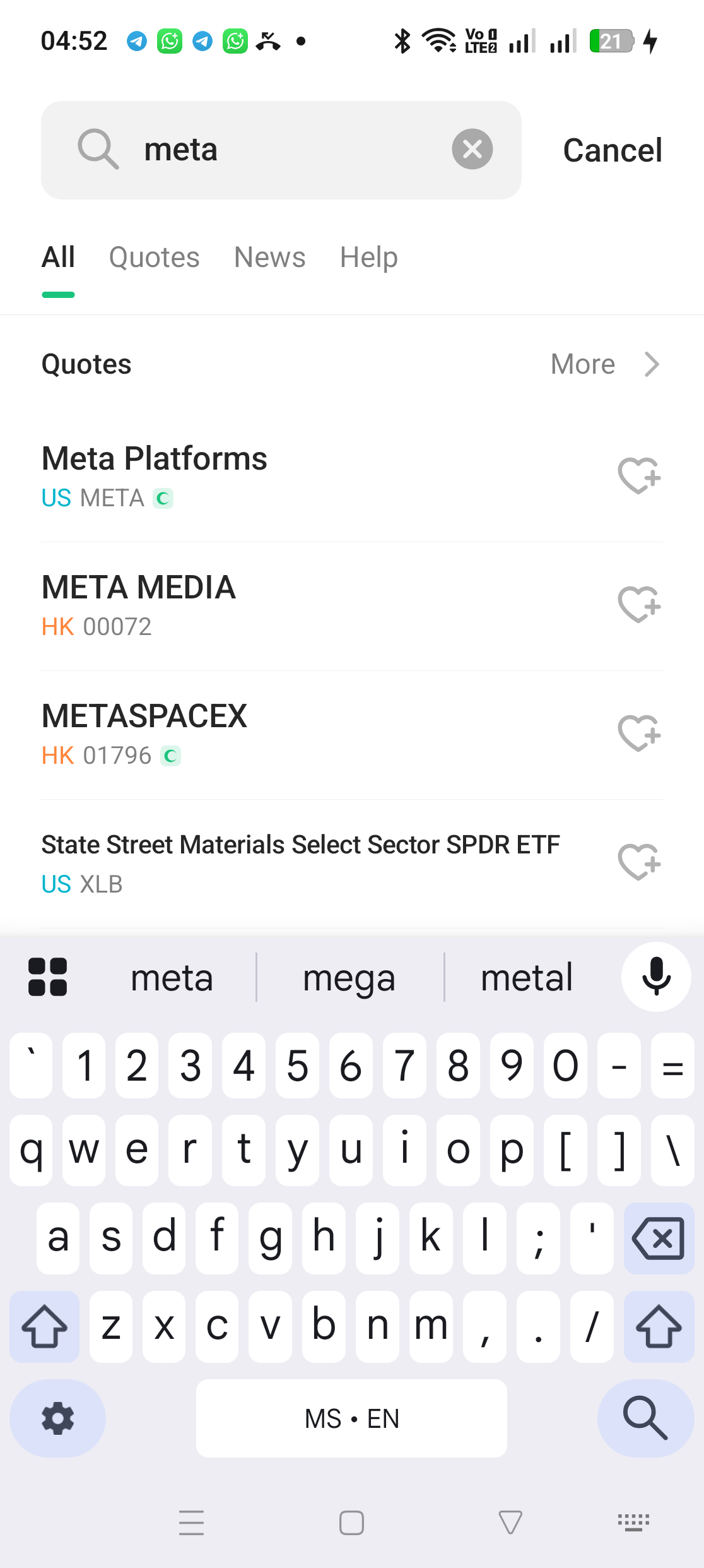
Open the M+ Global app, go to the Markets tab and tap the search icon at the top. Type the company name or ticker symbol - in this example we typed "meta".
Look carefully at the search results in the screenshot above: there are several different matches. Meta Platforms with the blue US label and ticker META is the stock we want. There is also "META MEDIA" from the Hong Kong exchange (HK label) - so always check the market label before tapping, or you might end up buying the wrong stock.
Step 2: Understand the Stock Page & Market Session
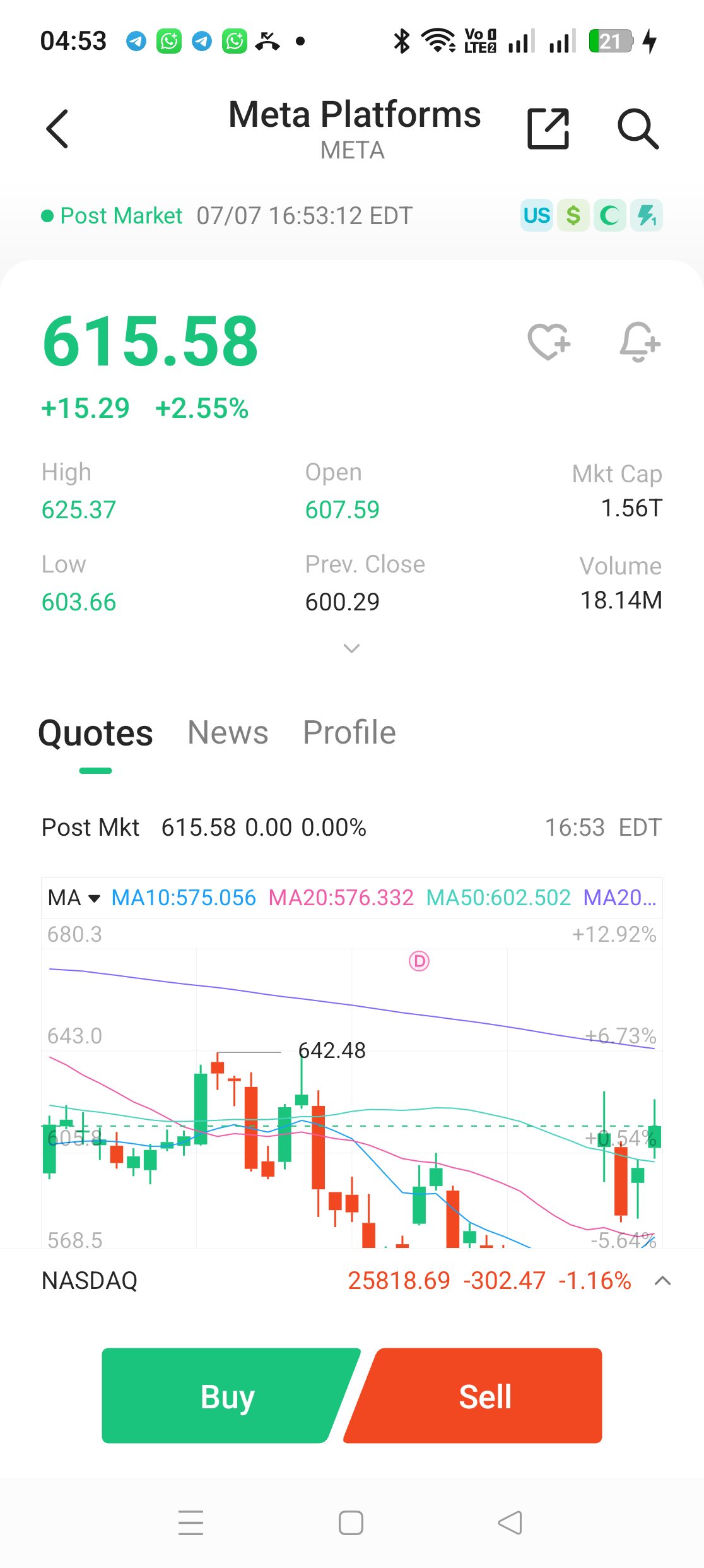
After tapping the search result, you land on the META stock page. A few important things to note here:
- Current price: USD 615.58, up +2.55% during that day's regular session
- Market session label: The top shows "Post Market 07/07 16:53:01 EDT" - meaning it is 4:53 pm in New York, the regular market has just closed, and trading is now happening in the post-market (after-hours) session
- Key data: High, Low, Open, Prev. Close, Market Cap (1.56 trillion USD!) and Volume
If this is your first time using the app and the layout feels unfamiliar, we recommend starting with our complete map of every screen in the M+ Global app.
At the bottom of the page are two large buttons: Buy (green) and Sell (red). Tap Buy.
Step 3: Get to Know the Order Ticket
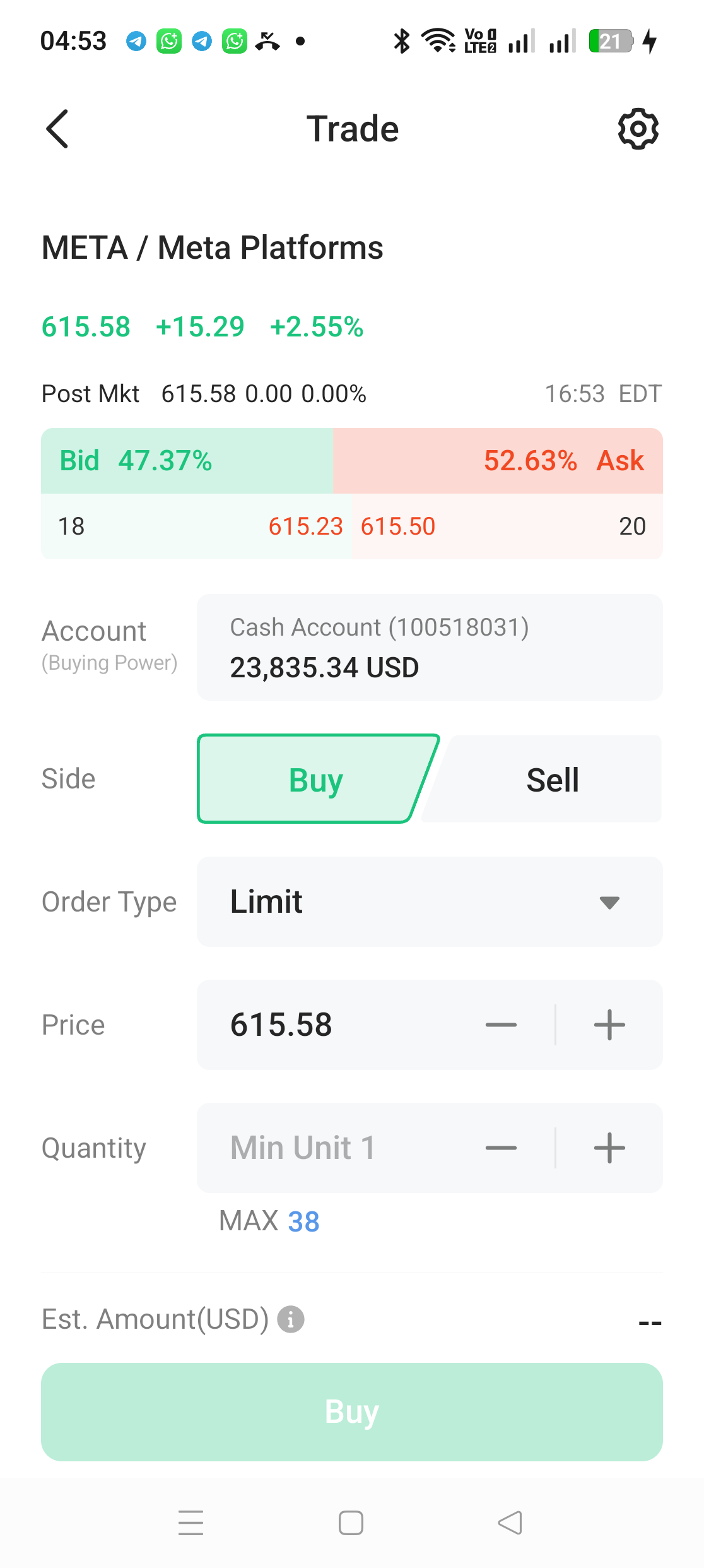
This is the most important screen in the entire process. Let's break down what you see:
- Bid/Ask bar: Bid 615.33 (the highest price buyers are willing to pay) and Ask 615.50 (the lowest price sellers will accept). The numbers 15 and 20 beside them show how many shares are waiting at those prices.
- Account (Buying Power): The USD balance available for buying. In this example, USD 23,835.34.
- Side: Buy or Sell - make sure Buy is selected.
- Order Type: The order type (explained shortly). The default is Limit.
- Price: The price you are willing to pay. The app auto-fills the latest price.
- Quantity: Number of shares. Note the MAX 38 - the app automatically calculates the maximum number of shares your buying power can afford.
One advantage of the US market over Bursa: there is no 100-unit lot system. You can buy as little as 1 share - which is exactly what we did in this demo.
Order Types in M+ Global: What's the Difference?
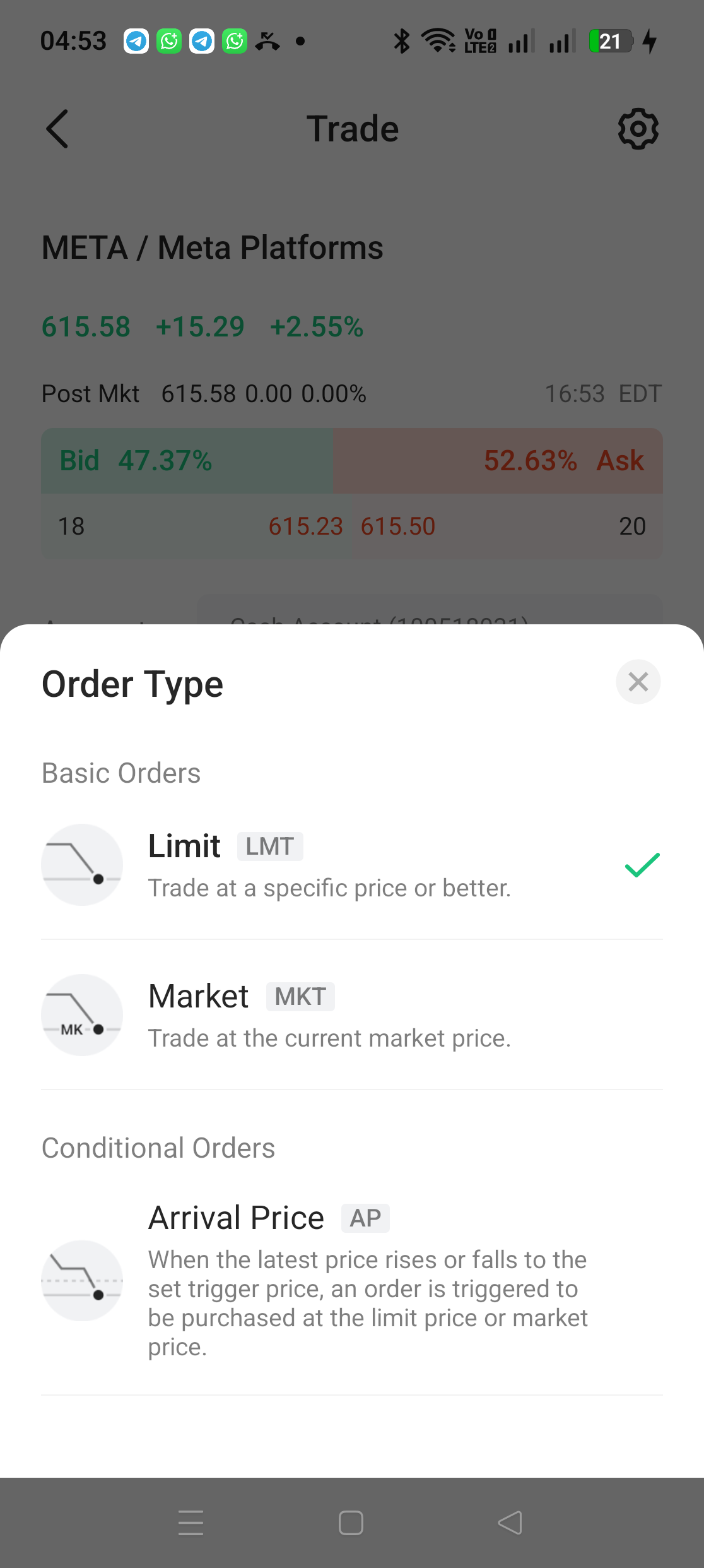
Tap the Order Type dropdown and you will see three options for US stocks:
- Limit (LMT) - "Trade at a specific price or better." You set a price ceiling; the order only fills at that price or better. This is the safest choice and the type we used in this demo.
- Market (MKT) - "Trade at the current market price." The order executes immediately at whatever the market price is. The upside: guaranteed fill. The downside: you cannot control the final price, especially when the market moves fast.
- Arrival Price (AP) - a conditional order. You set a trigger price; when the market touches that level, the actual order is sent as either a limit or market order. Useful for strategies like buying when price breaks out above a certain level.
Note: this list applies to the US market. For Bursa Malaysia stocks the options differ slightly - we covered those in our article on order types in M+ Global for Bursa.
Extended Trading Hours: The Concept Most People Miss
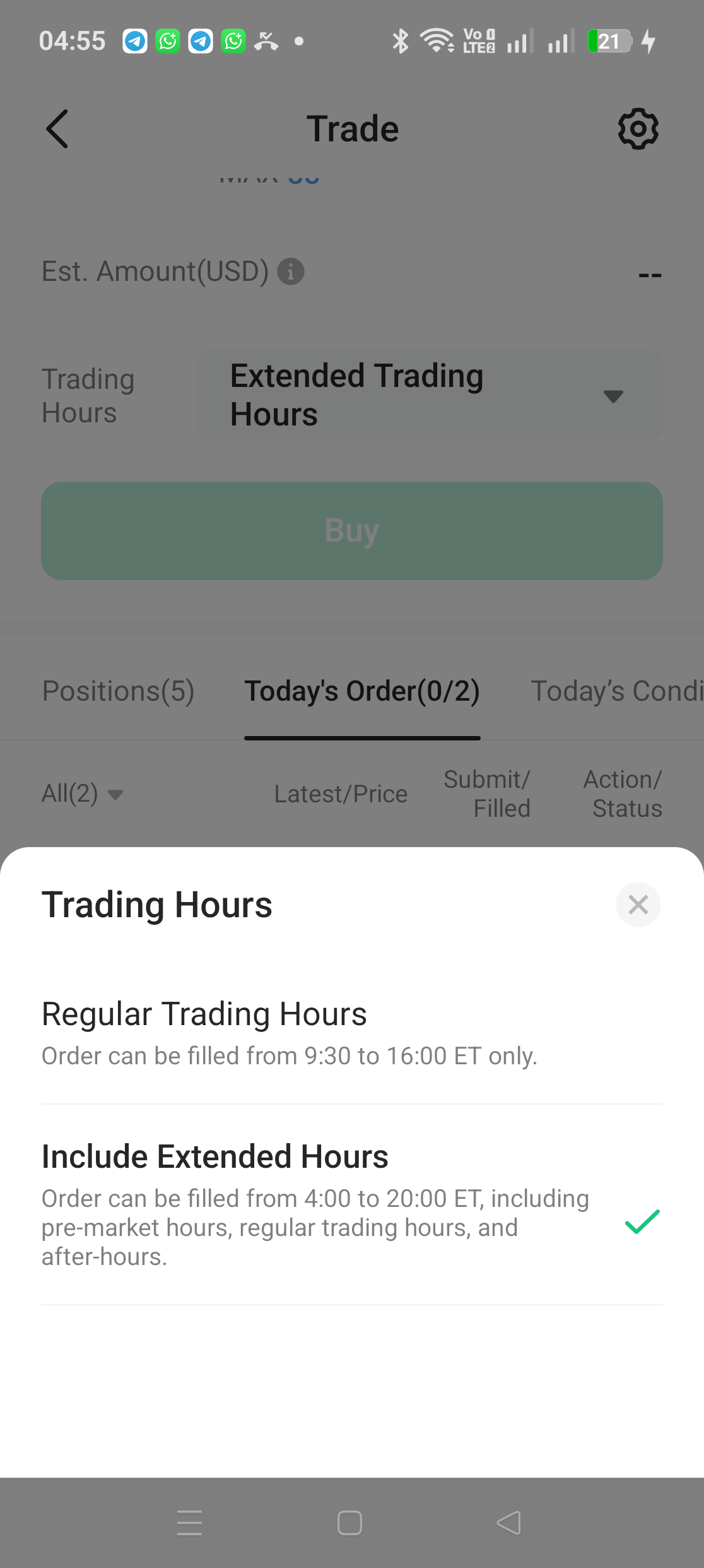
Scroll down slightly in the order ticket and you will find a setting most people ignore: Trading Hours. For Malaysian investors, this is one of the most important settings to understand because of our time zone difference.
US exchanges like NYSE and NASDAQ operate on official hours of 9:30 am to 4:00 pm Eastern Time. But outside those official hours, trading still happens in additional sessions. In M+ Global, there are two choices:
- Regular Trading Hours - your order can only fill between 9:30 am and 4:00 pm ET. In Malaysian time (during US summer), that is 9:30 pm to 4:00 am.
- Include Extended Hours - your order can fill from 4:00 am to 8:00 pm ET, covering three sessions: pre-market (4:00 am - 9:30 am ET), regular, and after-hours (4:00 pm - 8:00 pm ET). In Malaysian time: from 4:00 pm today until 8:00 am tomorrow.
Our demo was done at 4:56 am Malaysian time = 4:56 pm in New York, right in the after-hours session. That is why we had to select "Include Extended Hours" - had we chosen Regular, our order would have simply sat there until the market reopened that night.
But there are things to watch out for. According to the SEC's official investor guidance (investor.gov), extended-hours trading carries extra risks: thinner liquidity, wider bid-ask spreads, and more volatile prices. You can see it in our own screenshots - at one point, only 1 share was available at the ask price! That is why, during extended hours, you should use Limit orders only. Avoid Market orders.
Step 4: Set Price & Quantity (The Instant-Fill Trick)
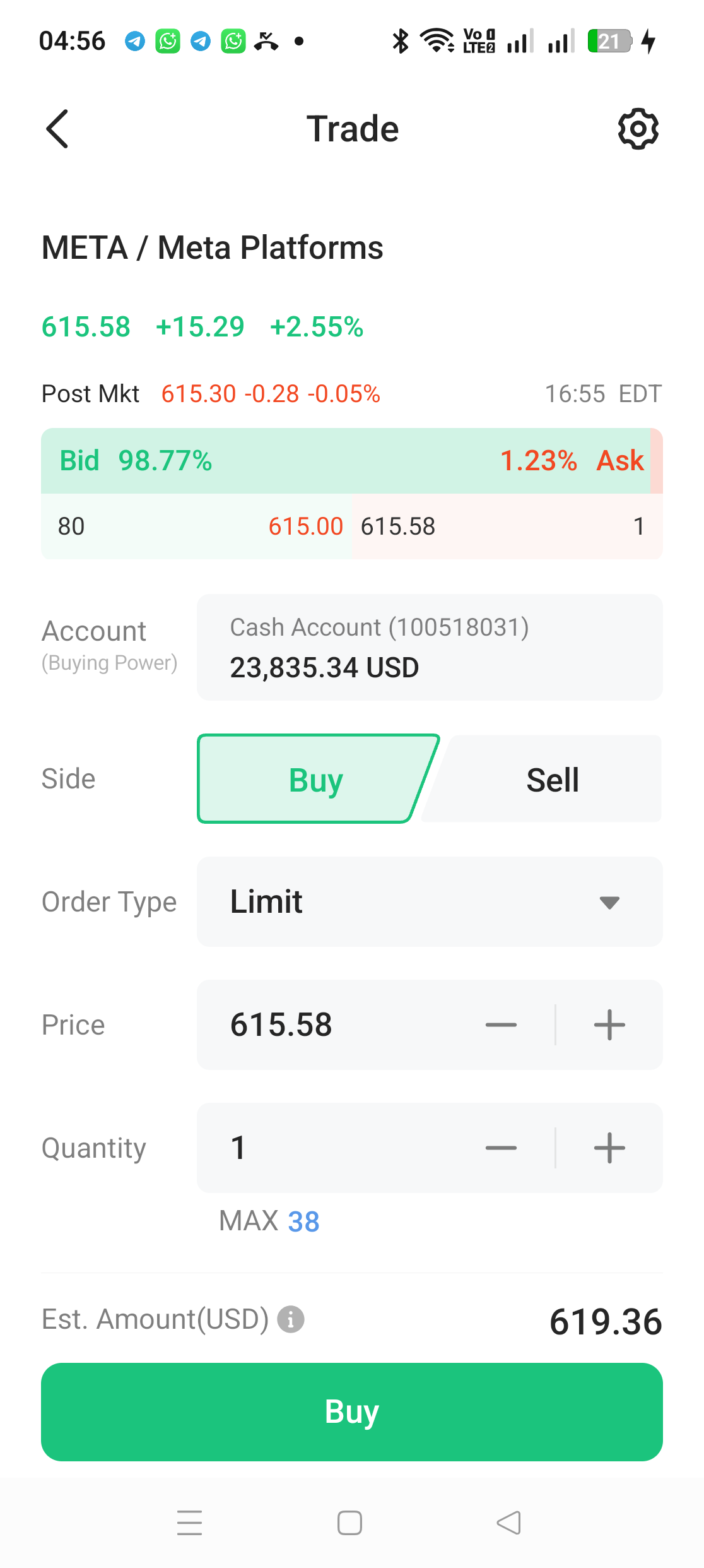
Now the practical part. New investors often ask: "I placed my order, why hasn't it filled?" The reason is usually simple - the limit price was set too low, far below where the market is trading.
If you want your order to fill instantly, here is the trick: set your limit price equal to the current Ask price. The ask is the lowest price a seller will accept right now. When your limit matches the ask, your order matches immediately with a waiting seller.
In the screenshot above: the Ask was 615.58, so we set Price = 615.58 and Quantity = 1. Note the Est. Amount (USD): 619.36 - this is the estimated total including fees (we will see the breakdown shortly). Tap the green Buy button.
Step 5: Review & Confirm the Order
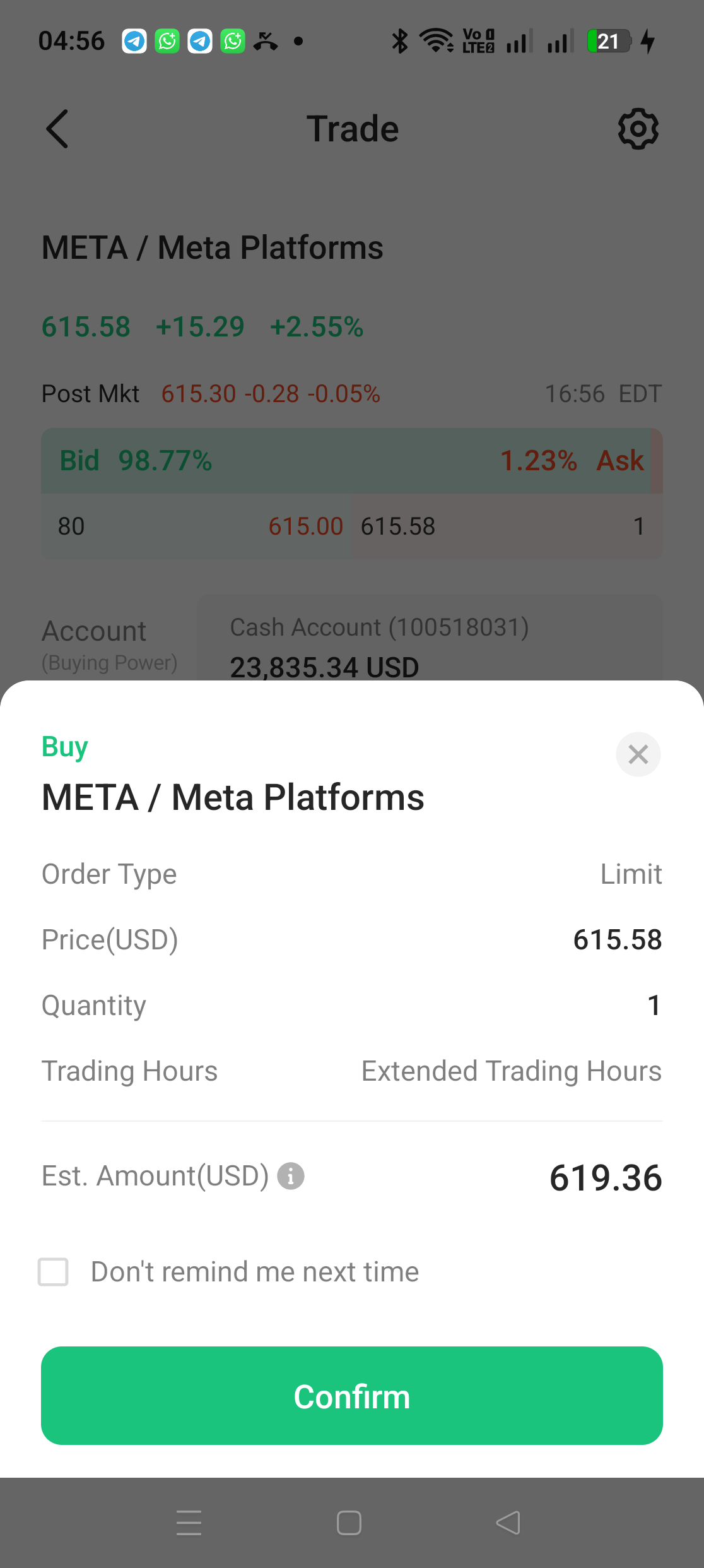
Before the order is sent, the app shows a full summary: order type (Limit), price (615.58), quantity (1), the Trading Hours setting (Extended Trading Hours), and the estimated amount (619.36). This is your last chance to fix any mistakes. Check everything carefully, then tap Confirm.
Filled in 1 Second - At a Better Price Than We Asked!
The moment we tapped Confirm, the "Order Filled" notification appeared. Notice something interesting: we set a limit of 615.58, but the order filled at 615.28 - a saving of USD 0.30!
This is called price improvement, and it is the natural behaviour of a limit order: "your price or better". When our order arrived, a seller was willing to sell lower, so the system matched us at the best available price rather than our ceiling.
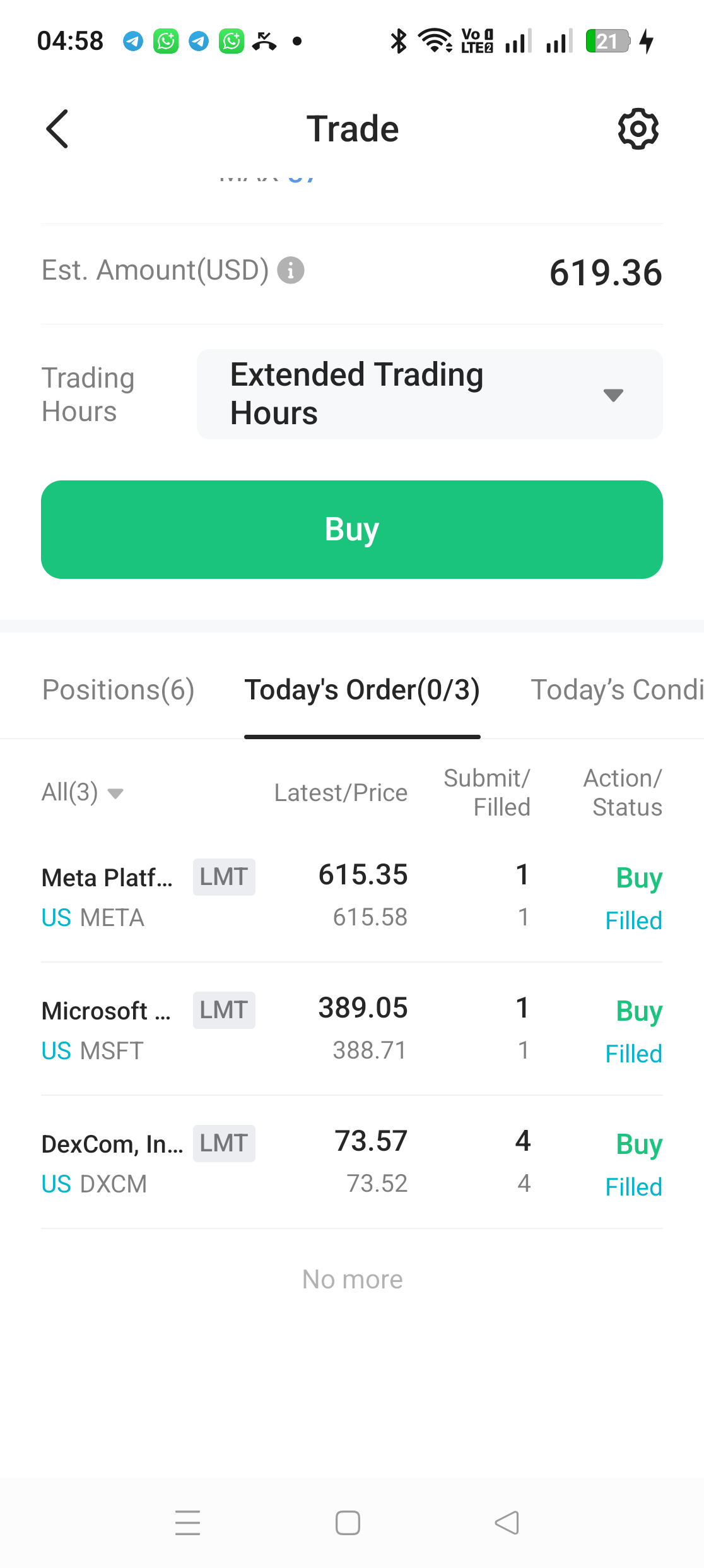
You can confirm the order status in the Today's Order tab at the bottom of the Trade screen. The "Submit/Filled" column shows 1/1 - meaning all 1 share submitted has been filled. As long as an order is not yet filled, you can still tap the order row to Edit or Cancel it.
Check the Order Details
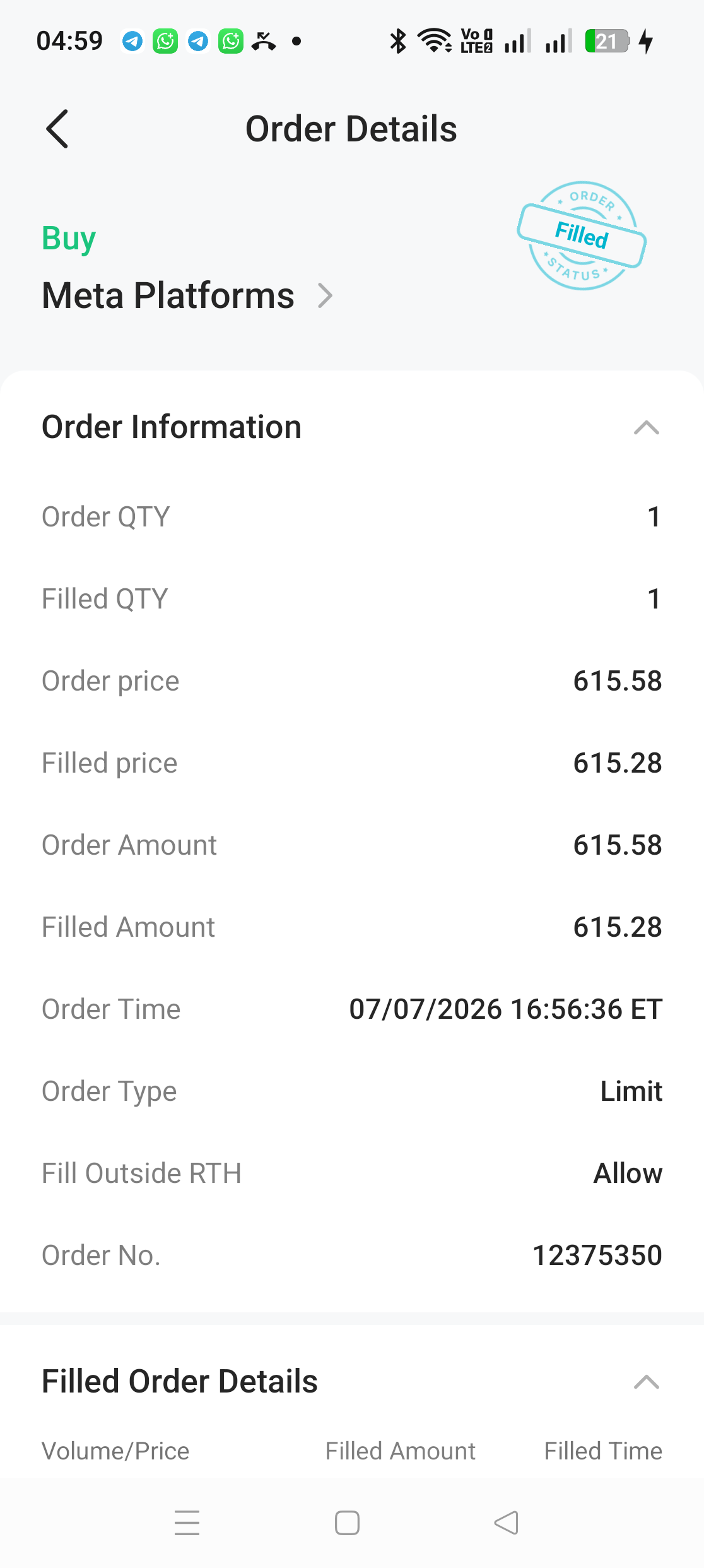
Tap the order and select Details to see the full record. Here you can see:
- Order price 615.58 vs Filled price 615.28 - evidence of the price improvement
- Order Time: 07/07/2026 16:56:36 ET - recorded in New York time
- Fill Outside RTH: Allow - this is how the app records our "Include Extended Hours" choice. RTH stands for Regular Trading Hours, so "Allow" means the order was permitted to fill outside official hours.
The Fees Section: What Did This Purchase Really Cost?
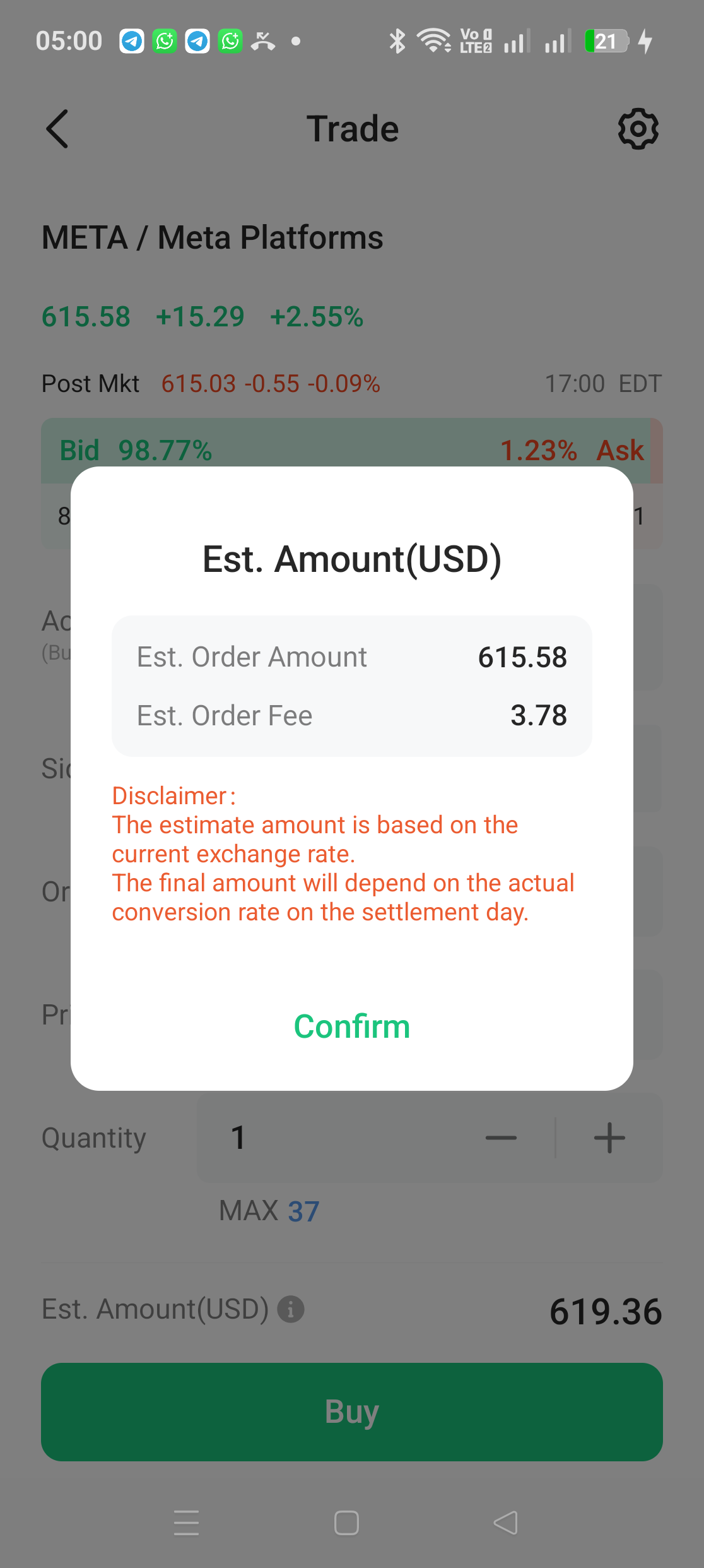
Now the part everyone wants to know - fees. In the order ticket, tap the ⓘ icon next to "Est. Amount" and the app shows the estimated breakdown:
- Est. Order Amount: 615.58 (share price × quantity)
- Est. Order Fee: 3.78 (estimate of all transaction charges)
- Total: 619.36 USD
For a small order like this, the minimum fee is the biggest component - which is why the fee looks high in percentage terms (0.6%) for a 1-share purchase. The bigger your purchase, the smaller this minimum fee becomes as a percentage. We have listed the full breakdown of every charge for both US and Bursa markets in our article on understanding M+ Global transaction fees.
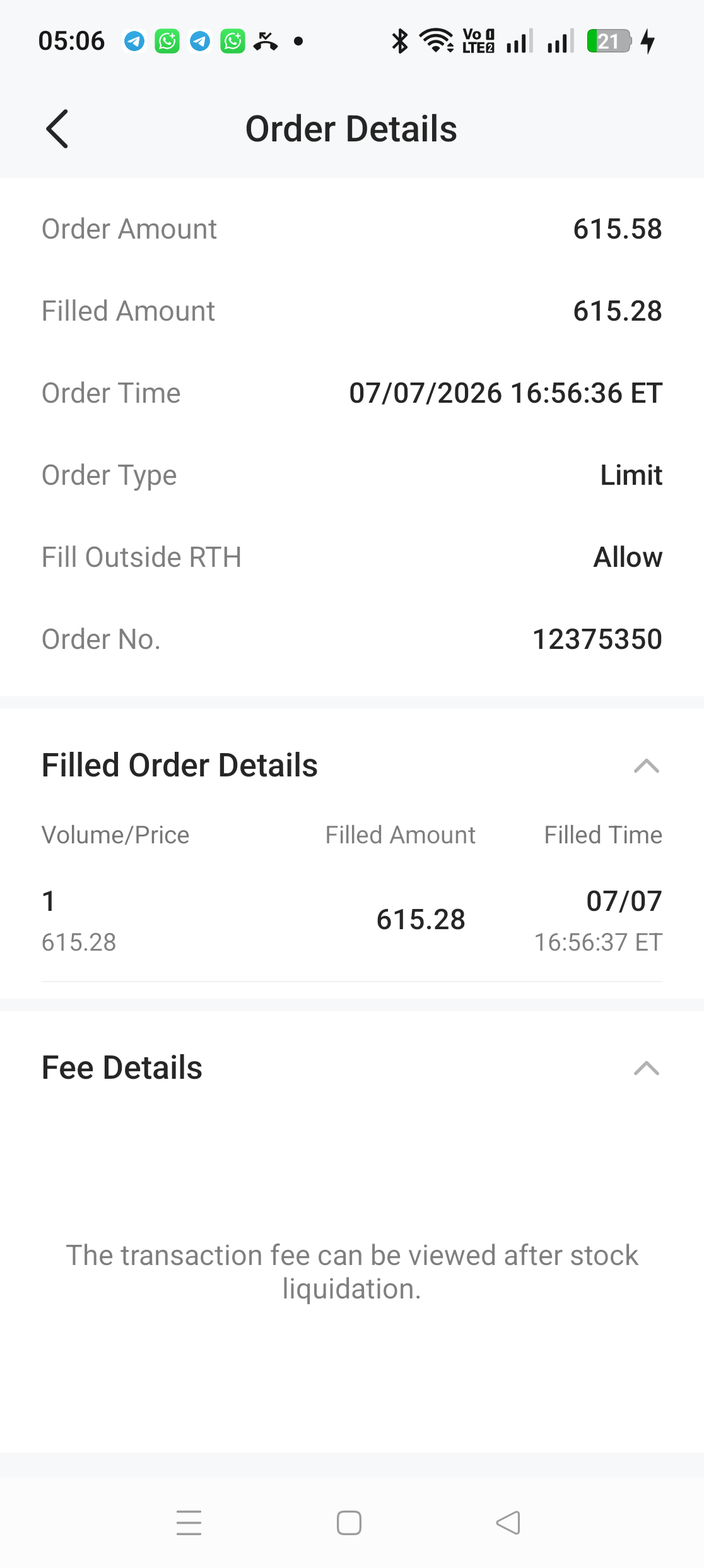
One thing that confuses many users: after the order fills, the Fee Details section in Order Details does not immediately show numbers. Instead the app displays: "The transaction fee can be viewed after stock liquidation." It means the final fee breakdown only appears once the transaction has been fully processed - you can check your daily e-statement the next day. We show you how in our M+ Global statement tutorial.
Also note the disclaimer in the estimate popup: the estimate is based on the current exchange rate, and the final amount depends on the conversion rate on settlement day.
The Stock Is Now in Your Portfolio
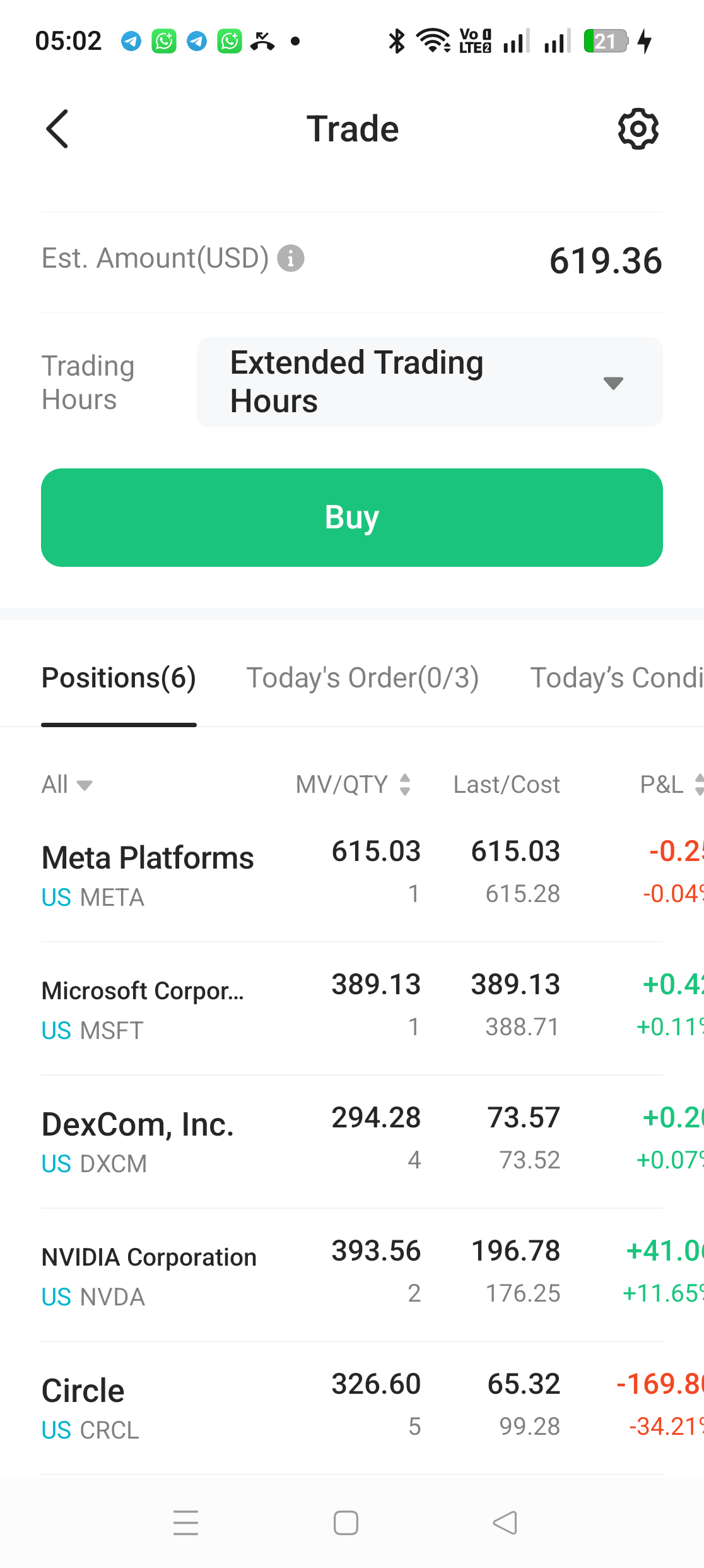
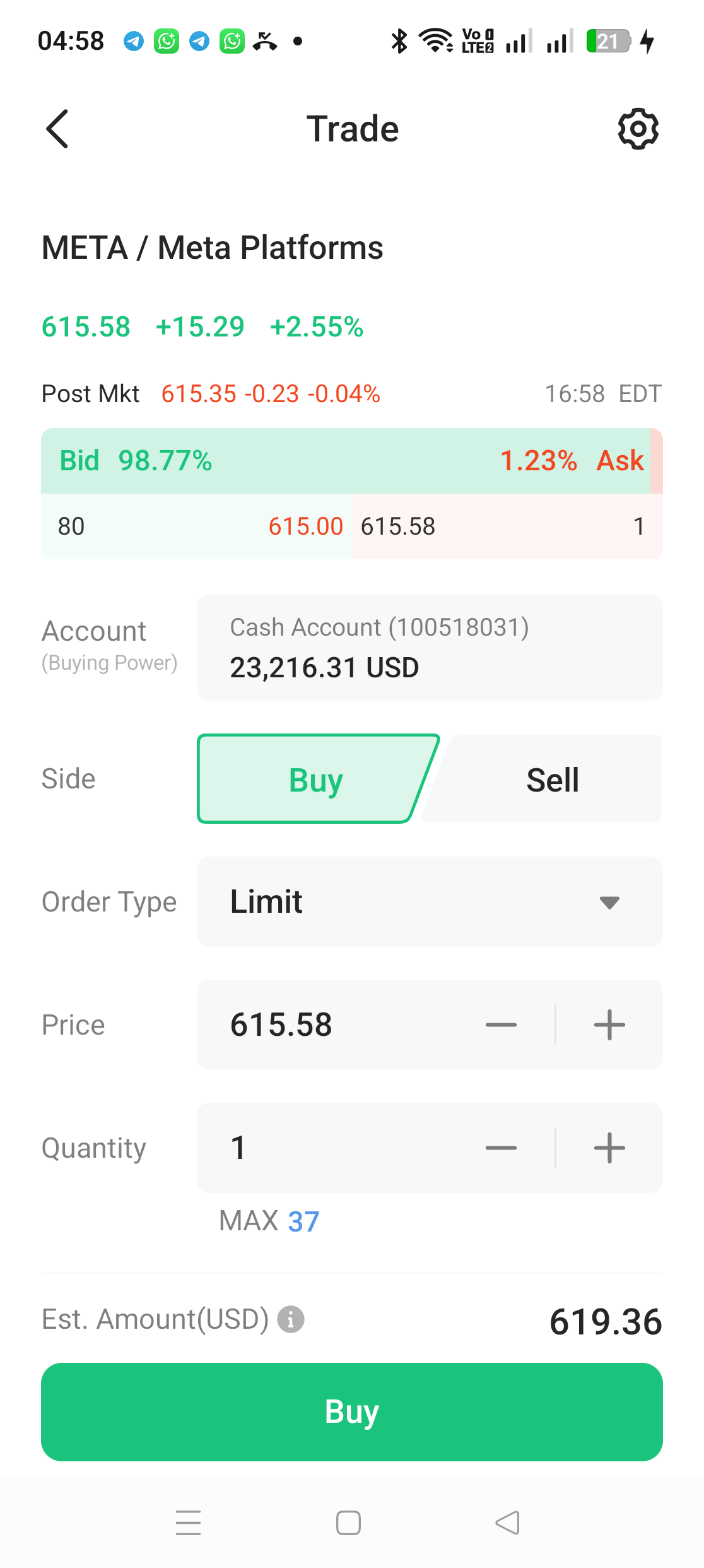
The final step - confirm the share is in your holdings. Go to the Positions tab and you will see Meta Platforms listed with a quantity of 1 share at a cost of 615.28. Buying power was also deducted instantly, from USD 23,835 down to USD 23,216.
That is it - the entire process from search to the stock landing in the portfolio took less than 5 minutes. When you eventually sell your US shares and want to calculate profit accurately, make sure you understand how average cost is calculated for US/HK stocks.
5 Important Tips Before Your First US Stock Purchase
- Check the market label when searching - similarly-named companies exist on different exchanges (US vs HK). Verify the ticker and label.
- Use Limit orders, especially during extended hours - thin liquidity in pre-market and after-hours makes Market orders risky.
- Want a fast fill? Set your limit = the Ask price - and sometimes you get price improvement, like we did.
- Do not forget the Trading Hours setting - if you trade during the Malaysian morning (US after-hours), you must select "Include Extended Hours".
- Mind the minimum fee - on small purchases, the minimum fee eats a bigger percentage. Consider a sensible purchase size.
Frequently Asked Questions (FAQ)
Do I need a CDS account to buy US stocks?
US shares are not held in CDS - they are held in a nominee account by the broker on your behalf. However, if you open an account with Malacca Securities, a single account opening gives you access to both Bursa Malaysia (via CDS) and global markets like the US and Hong Kong (via M+ Global).
What is the minimum capital to buy US stocks?
Just 1 share - there is no 100-unit lot system like Bursa. In this demo 1 share of META cost around USD 615, but many US stocks trade below USD 50 per share. M+ Global does not offer fractional shares, so the minimum is 1 full share.
What are extended trading hours?
Trading sessions outside official US market hours (9:30 am - 4:00 pm ET). They include pre-market (4:00 am - 9:30 am ET) and after-hours (4:00 pm - 8:00 pm ET). In Malaysian time during US summer, the full extended window runs from 4:00 pm until 8:00 am the next day.
Why did my order fill at a lower price than my limit?
That is price improvement. A limit order means "this price or better" - if a seller was willing to sell cheaper when your order arrived, you get that better price.
When can I see the actual transaction fees?
After the transaction is fully processed. The app displays "The transaction fee can be viewed after stock liquidation" in Fee Details. Check your daily e-statement the next day for the final breakdown.
Can I use a Market order during extended hours?
Strongly discouraged. During extended hours there are far fewer buyers and sellers and spreads are wider, so a Market order can fill at a price far from what you expect. Use a Limit order.
Are US stock profits taxed in Malaysia?
Capital gains from selling US shares are not taxed by the US for foreign investors. However, US dividends are subject to a 30% withholding tax at the US level. Consult a tax adviser for your personal situation.
How do I know if a US stock is Shariah-compliant?
Unlike Bursa Malaysia which has an official list from the SC's Shariah Advisory Council, US stocks require your own screening - either through international Shariah indices or a recognised screening methodology. Check the latest status before investing as it can change.
Conclusion
Buying a US stock in the M+ Global app is genuinely simple: search for the stock, tap Buy, choose a Limit order, set your price, confirm - and in our case, it filled within a second at a better price than we asked for. The keys are understanding the Trading Hours setting (because Malaysia and the US are 12 hours apart) and always using Limit orders for price control.
If you are ready to start building your own portfolio, the first step is opening an account.
Open a CDS trading account with us for access to Bursa Malaysia as well as foreign stocks such as the US and Hong Kong markets in one account.
New to stock investing? Download our Stock Market Basics Ebook for free.