Pine Script: Viewing Different Timeframes in TradingView

In this guide, we will explain how to use Pine Script to view different timeframes in TradingView.
This is a powerful technique that allows traders to analyse price movements across multiple time periods on a single chart.
Related articles you should read first:
What is a Timeframe?
A timeframe refers to the period of time measured in seconds, minutes, hours, daily, weekly, monthly, or even yearly intervals.
Throughout these time periods, price movement activities occur in the stock market.
Price movements naturally go either up or down.
Today, we will learn how to use Pine Script to view different timeframes in TradingView.
Pine Script in TradingView
As usual, the first step is to access TradingView.
Once you have logged in, click on the Pine Editor.
Not sure where it is?
Refer to the image below.
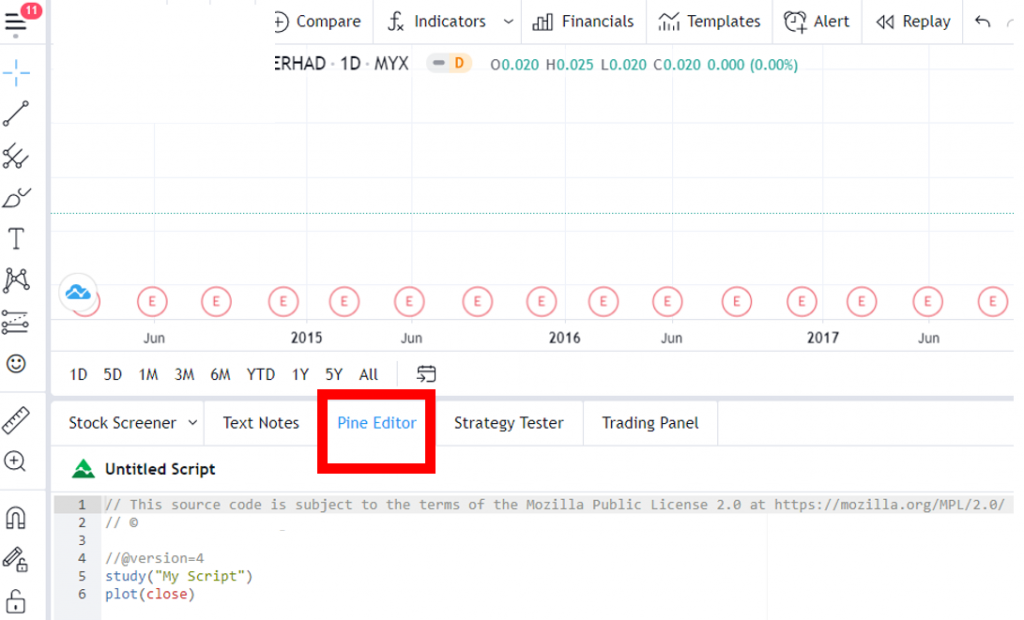
When you click on it, a space will appear where you can type your script.
If you are new to Pine Script, do not worry if you are unsure what to type.
We will provide the script for you.
Just keep scrolling until the end of this article.
The first thing you need to type is the title of what you want to learn.
For example, since we want to learn about different timeframes, write that first.

Next, we will type the script for the indicator involved (you can use any indicator you prefer).
This time, we will be using the MACD indicator.
However, we will only use the MACD fast and MACD slow criteria.
Type the following:
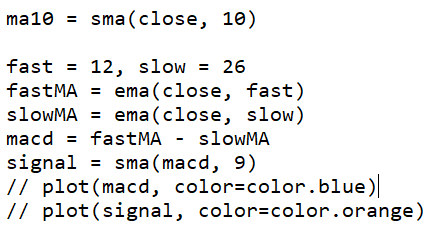
That is the script for MACD.
Next, we will type the script based on the timeframe we want.
It does not matter if it is one minute, two minutes, or an hour or two.
It is entirely up to you.
Follow whatever analysis interests you.
So what do we type?
Refer to the image below.
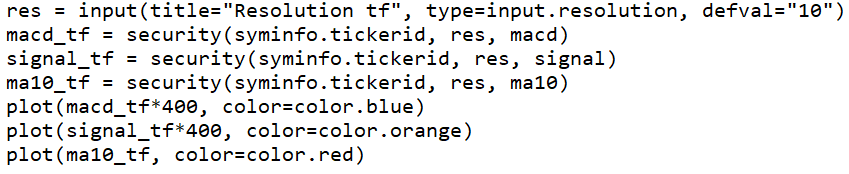
How do you know which timeframe to use?
Can you see the first line that reads defval="10"?
That is where you change it if you want to use a different timeframe.
10 refers to 10 minutes.
For one hour, type defval="60".
Why 60?
Because one hour has 60 minutes.
If you want to use a daily timeframe, simply type defval="D".
This refers to one day (Day).
You do not need to convert it to minutes (24 hours x 60 minutes = 1440).
The same applies to weekly timeframes.
Simply type defval="W" for weekly and defval="M" for a monthly timeframe.
Make sure when using timeframes, you use capital letters for D, W, and M — D for daily, W for weekly, and M for monthly.
Otherwise, it will not be valid.
Once you have typed everything, make sure you save your work.
All Done
Are you following along alright?
As usual, do not worry if you are not fully clear on Pine Script yet.
The Mahersaham team has prepared a video tutorial for you.
Frequently Asked Questions (FAQ)
1. What is Pine Script in TradingView?
Pine Script is a programming language used in the TradingView platform to build custom indicators and trading strategies. It allows traders to create technical analysis tools tailored to their specific needs.
2. How do you view different timeframes using Pine Script?
You can use the security() function in Pine Script to pull data from different timeframes and display it on your current chart. This allows you to see both the bigger picture and smaller market movements simultaneously.
3. Is Pine Script suitable for beginners?
Yes, Pine Script is designed with a syntax that is easier to understand compared to other programming languages. TradingView also provides comprehensive documentation and sample scripts that beginners can study step by step.
4. Why is it important to analyse multiple timeframes when trading?
Analysing multiple timeframes helps traders gain a more complete picture of market trends. Larger timeframes show the primary trend, while smaller timeframes help identify precise entry and exit points.
Conclusion
Pine Script is a powerful tool for traders who want to customise their technical analysis in TradingView. By understanding how to view different timeframes, you can make more accurate trading decisions.
Want to start learning stock trading? Open a CDS account with Mahersaham and download our free stock ebook for a beginner's guide to investing.