How to Register a TradingView Account and Create a Template

What Is TradingView?
Assalamualaikum and hello! Today I will be sharing an educational article for all of you. This article covers how to register a TradingView account and create a template. But first, what is TradingView?
TradingView is a charting tool used for conducting Technical Analysis studies. Apart from TradingView, we can also use Share Investor, Bursa Station, Malaysiastock.Biz, KLC Screener, and one of them is TradingView.
Register a Free TradingView Account!
CLICK THE LINK BELOW
https://my.tradingview.com/gopro/?share_your_love=MahersahamOfficial
The first step you need to take to learn about TradingView is to click the link above to register a free TradingView account and click SIGN UP!
Here you can enter your email to register and fill in a few important details that are required.

Alright, after registering you can go to the MS button to change the language to Bahasa Melayu as shown in the image above.
For your information, the TradingView platform can also be accessed on your mobile phone. Simply download the TradingView app from Playstore or App Store.
How to Set Up TradingView

Next, click on the chart icon as shown in the image above and the TradingView chart will appear. For those opening a TradingView account for the first time, it will display the Apple stock counter by default.
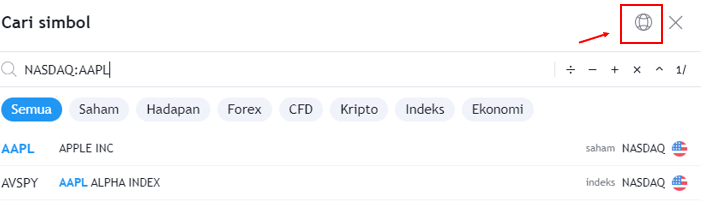
Click on Apple in TradingView and search for the globe symbol (select exchange) to switch to BURSA MALAYSIA – MYX
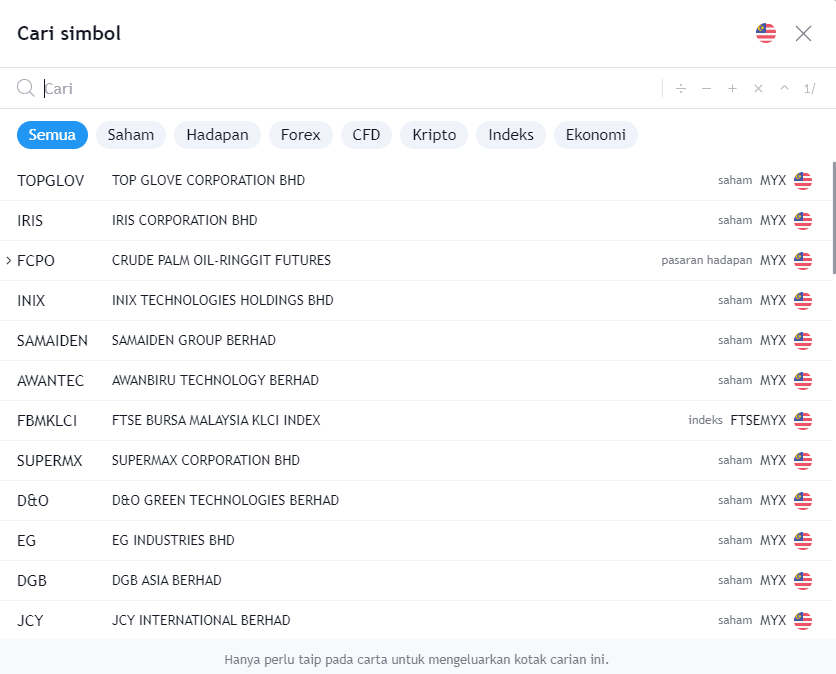
And you will see companies and stock counters listed in Malaysia as shown in the image above. Here you can select which counter you would like to analyse.
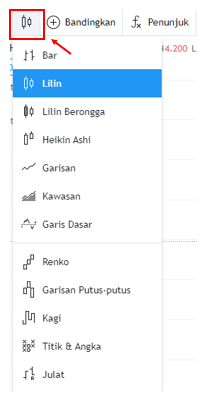
After selecting a counter, you can go to the symbol with the candle icon as shown above and select candlestick to choose your preferred candle type.
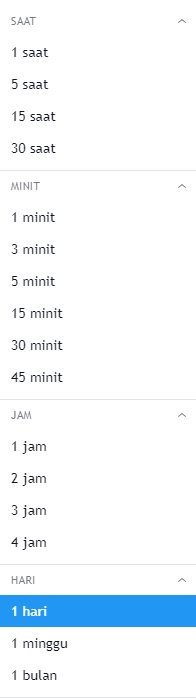
For the timeframe, you can select 1D which means one day as shown in the image above.
You can also choose a weekly or monthly timeframe on your TradingView depending on the type of analysis you wish to conduct.
Indicators & Strategies
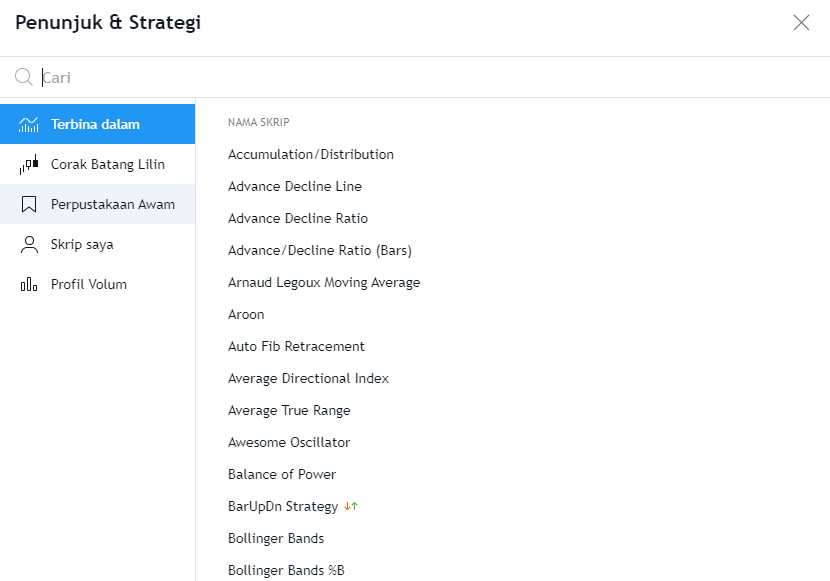
As you can see in the image above, this is the indicators and strategies section. Click on the fx symbol to select your preferred indicators and strategies.
Here you can choose to use Stochastic, Moving Average and also MACD Strategy on your TradingView.
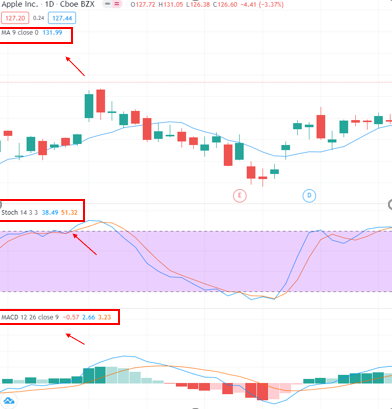
As you can see in the image above, the selected indicators and strategies will appear below and above the chart.
Here you can observe the graph movement following the current stock price.
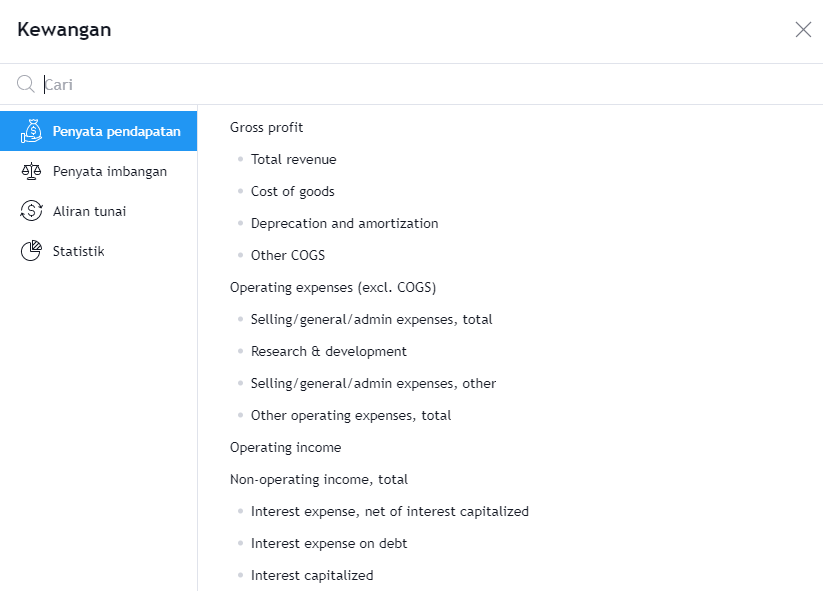
Next, within your chart you can add financial data. For example, you can choose to view total revenue, operating expenses, PE or ROE.
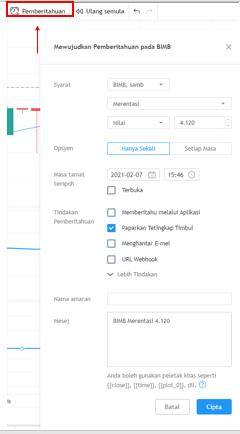
Next, let us look at the notification features. You can click on the clock symbol as shown in the image above.
Here you can set an alarm to alert you about the current price of the stock counter you are monitoring.
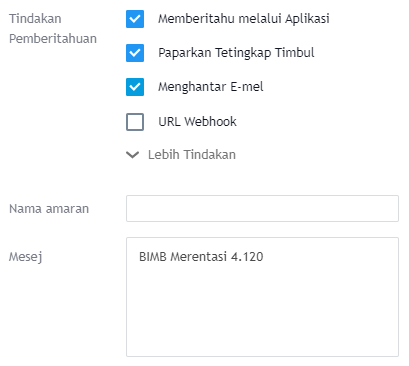
For example, refer to the image above — in the message field you can write a message such as "BIMB CROSSING 4.120".
Additionally, you can also set the alarm to be sent directly to your email and receive notifications through the app.
With this feature, you can be notified when the stock price has reached your TP (target price) or fallen to the CL (cut loss) level. It makes it easier for you to execute your trading plan.
Setting Up a TradingView Template
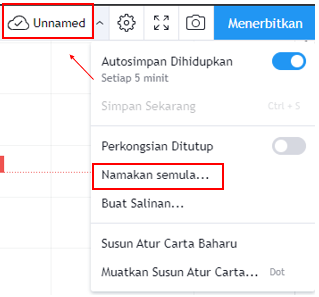
To set up a TradingView template, go to chart layout as shown in the red box in the image above. Select unnamed and choose rename.
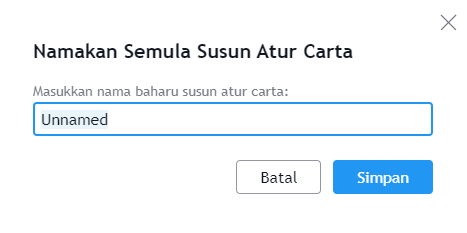
In the rename field, you can enter your name. For example, Abu, Senah, or any name you prefer.
The function of this is so that you have your own TradingView template, especially if you are sharing one TradingView platform with 2 or 3 other friends.
After this, whenever you want to conduct analysis, you can use your own TradingView template.
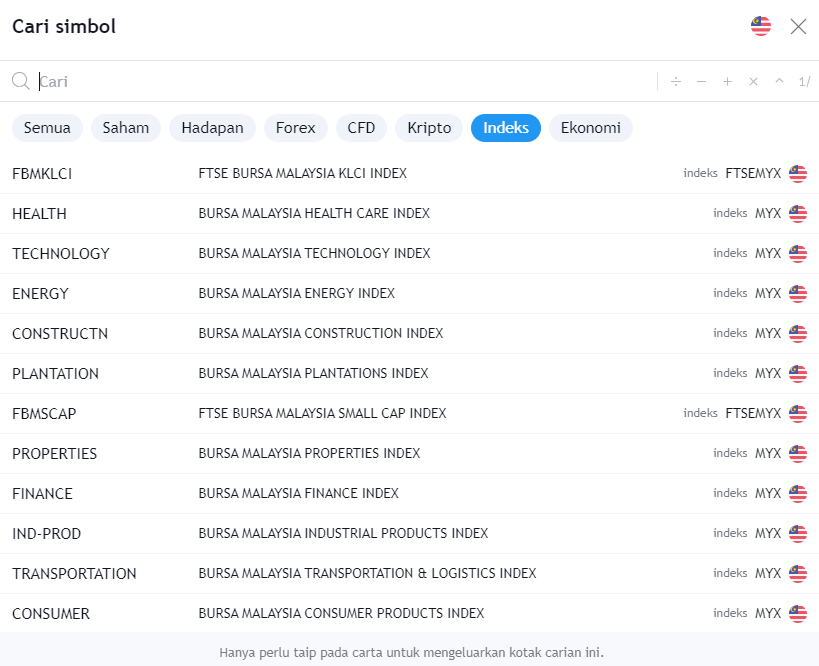
For those who want to analyse the FBMKLCI Index, you can search for FBMKLCI and switch to the index view.
Based on the image above, you can also choose to analyse other sectors within Bursa Malaysia.
Alright ladies and gentlemen, for the final part of today's lesson, we will cover the publish feature.

As you can see in the image above, you can click on the publish feature. Its function is that if you have any ideas you want to place in your template or any references for future use, you can create notes and publish them.
Conclusion
In conclusion, by using TradingView you can conduct better analysis on any stock counter or company that you wish to invest in.
Do not forget to register a free TradingView account and learn even more about TradingView.
Frequently Asked Questions (FAQ)
1. Is a TradingView account free?
Yes, TradingView offers a free plan that is sufficient for new investors to begin their technical analysis studies. You only need to register using your email address.
2. How do I create my own template in TradingView?
You can create a template by setting your preferred indicators, chart colours and favourite settings, then save it as a template so it can be reused at any time.
3. Can I use TradingView for Malaysian stocks?
Yes, TradingView supports Bursa Malaysia market data. You can search for Malaysian stock counters using the relevant stock codes.
4. What are the advantages of TradingView compared to other platforms?
TradingView offers a user-friendly interface, various technical analysis tools, an active trader community, and can be accessed through a web browser without the need to download any software.
Start Your Investment Journey
Ready to start investing after registering your TradingView account? Open a CDS account with Mahersaham today to begin trading stocks on Bursa Malaysia. Also download the free Mahersaham ebook for a complete beginner's guide to stock investing.