How to Check Your Account Statement in the M+ Global App (Daily & Monthly)

Every time you buy or sell shares, make a deposit, or receive dividends, the transaction is recorded in your account Statement. This statement is the official document that confirms every transaction, the costs charged, and your account balance. Unfortunately, many M+ Global users do not know where to find it because it is "hidden" one swipe away from the main screen.
In this article we show you, step by step, how to find the Statement in the M+ Global app, the difference between the Daily Statement and the Monthly Statement, and what you should look out for inside it.
Where Is the Statement Located?
Many people look for the Statement in the Settings menu or the Me tab — in reality it is not there. The Statement is accessed through the Trade tab. Follow these steps:
- Step 1: Open the Trade tab at the bottom of the screen.
- Step 2: On the quick-action row (Trade, IPO, Deposit, Inter Transfer, Realised Profit), swipe left. Notice the small dots beneath the row that indicate there is a second page.
- Step 3: The second page will display two new icons — Withdraw and Statements. Tap Statements.
Tip: if you are using a US/HK account, the arrangement of the quick actions differs slightly, but the swipe-left method to reveal the additional options is the same.
Daily Statement vs Monthly Statement
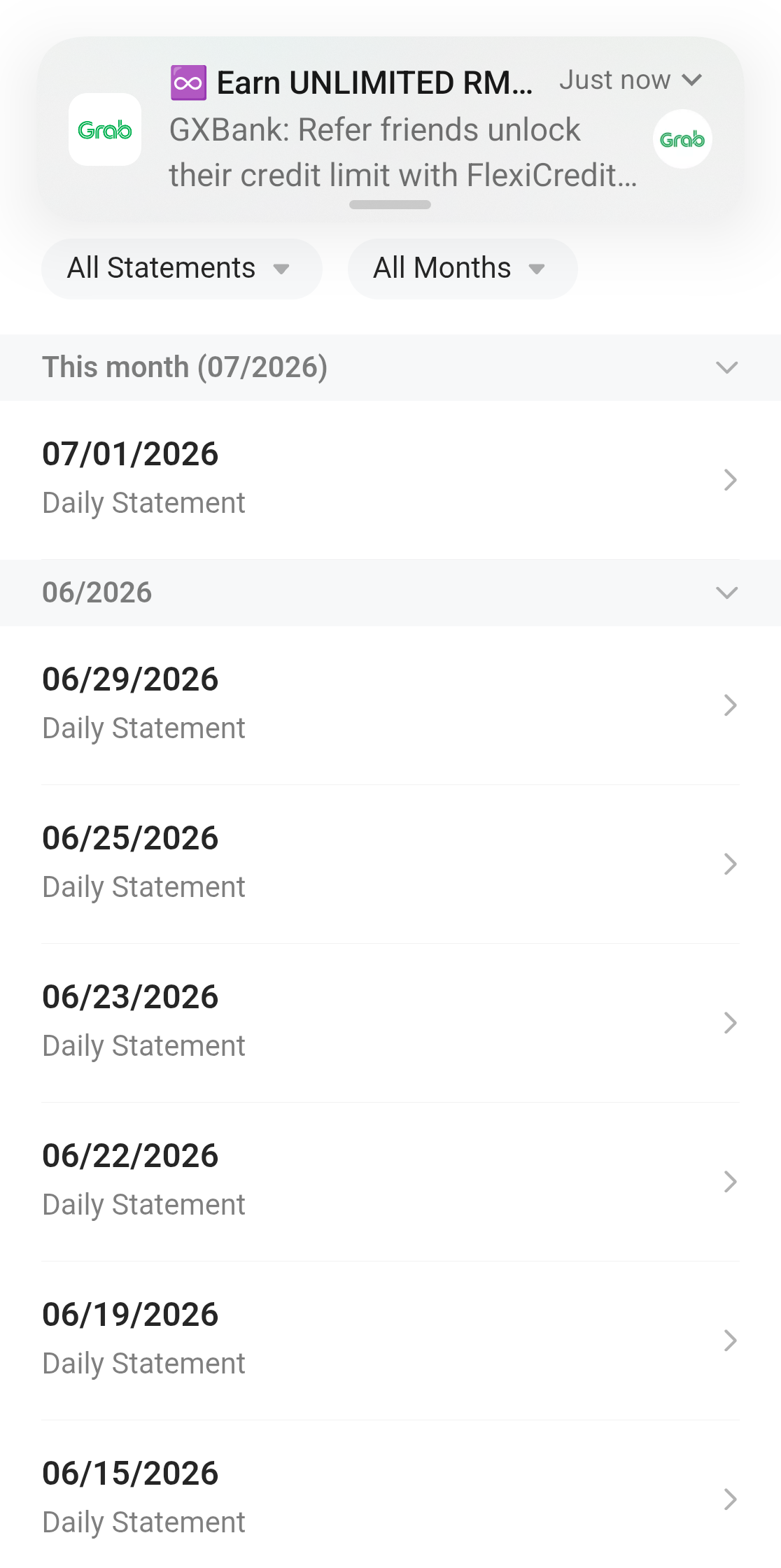
On the Statements screen there are two filters at the top: All Statements (type) and All Months (month). Statements are grouped by month (for example: "This month (07/2026)", "06/2026") and can be expanded or collapsed. There are two types of documents:
- Daily Statement — a daily statement, generated for each day that has trading activity or fund movement. Use this to review the details of your daily transactions closely.
- Monthly Statement — a monthly statement, an overall summary for the month. This is the official statement you would typically keep for your personal records or for tax purposes.
To find a particular statement quickly, use the All Months filter to select a month, or All Statements to filter by statement type.
What Is Inside a Statement?
When you tap a statement row, a full PDF-style document opens. It is issued officially by Malacca Securities Sdn. Bhd. (the broker behind M+) and contains:
- Account information — your name, account code (Client Code), and CDS number.
- Trust Account ledger — opening balance, deposits, withdrawals, and debit charges (for example an IPO subscription).
- Contract details — for a Daily Statement involving trades, it displays a Tax Invoice / Contract with the stock code, quantity, price, and a breakdown of fees (brokerage, stamp duty, clearing fee).
You can share or save this document using the Share button in the top corner. Because it contains full personal and financial information, do not share your statement with anyone you do not trust, and be cautious if any party asks you to send them a statement — this is a common scammer tactic.
Why Is the Statement Important?
The statement is not just a record. It is useful for:
- Checking your actual costs — confirm how much you paid in fees and charges for each trade. To understand each fee component, read Understanding the Fees & Charges in the M+ Global App.
- Reconciling your balance — make sure your deposits and withdrawals were credited correctly.
- Tax & personal records — the Monthly Statement is well suited to keeping as official proof of your transactions throughout the year.
Frequently Asked Questions (FAQ)
Why can't I find the Statement in the Settings menu?
The Statement is genuinely not in Settings or the Me tab. It sits inside the Trade tab — swipe left on the quick-action row to reveal the Statements icon.
What is the difference between the Daily Statement and the Monthly Statement?
The Daily Statement is generated for each day that has activity, ideal for reviewing daily details. The Monthly Statement is the official summary for a full month, ideal for keeping as a record.
Can I download or share my statement?
Yes. Use the Share button in the top corner of the statement screen. But remember, this document contains full personal data — share it only with legitimate, trusted parties.
Are the statements for the BURSA and US/HK accounts separate?
Yes. Switch accounts (BURSA or US/HK) in the Trade tab first, then open Statements to view the statements for that account.
Conclusion
The statement is the official record of every cent that goes in and out of your trading account. You now know it is "hidden" one swipe away from the Trade screen — and you know the difference between the Daily and Monthly Statement. Get into the habit of reviewing your statements regularly so that you always know the true position of your account costs and balance.
Don't have an account to get started yet? Open a CDS trading account through Mahersaham to invest in Bursa Malaysia shares as well as overseas markets such as the US and Hong Kong.
New to shares? Download the free Stock Investing Basics Ebook to master the fundamentals before you start trading.
Note: This article is for educational purposes only and is not investment advice or a recommendation to buy or sell any stock. Please do your own research and seek licensed professional advice before making any investment decision.