Get to Know the M+ Global App: A Full Map of Every Screen & Function (2026)

Many new investors download the M+ Global app, log in, and then feel a little lost because they do not know what each screen and button is for. This article is a complete map of the latest (2026) M+ Global app — we walk you through every important tab and screen one by one, complete with real screenshots, so you understand where each function lives before you start trading.
Think of this article as your reference "hub": every specific task (buy, sell, deposit, apply for an IPO and so on) has its own step-by-step guide that we link to throughout. If you are truly new and want to start from scratch (download, log in, first deposit), read How to Use the M+ Global Account: From A to Z first.
The 6 Main Tabs at the Bottom
All navigation in M+ Global revolves around six tabs at the bottom of the screen. Get to know what each one does first:
- Watchlists — the stocks you are tracking
- Markets — market indices and an overview of the market
- Trade — your account control centre: balances, stock positions, orders and quick actions
- News — market and corporate news
- Discover — educational content, live streams and promotions
- Me — account settings and personal features
Watchlists Tab: Your Tracking List
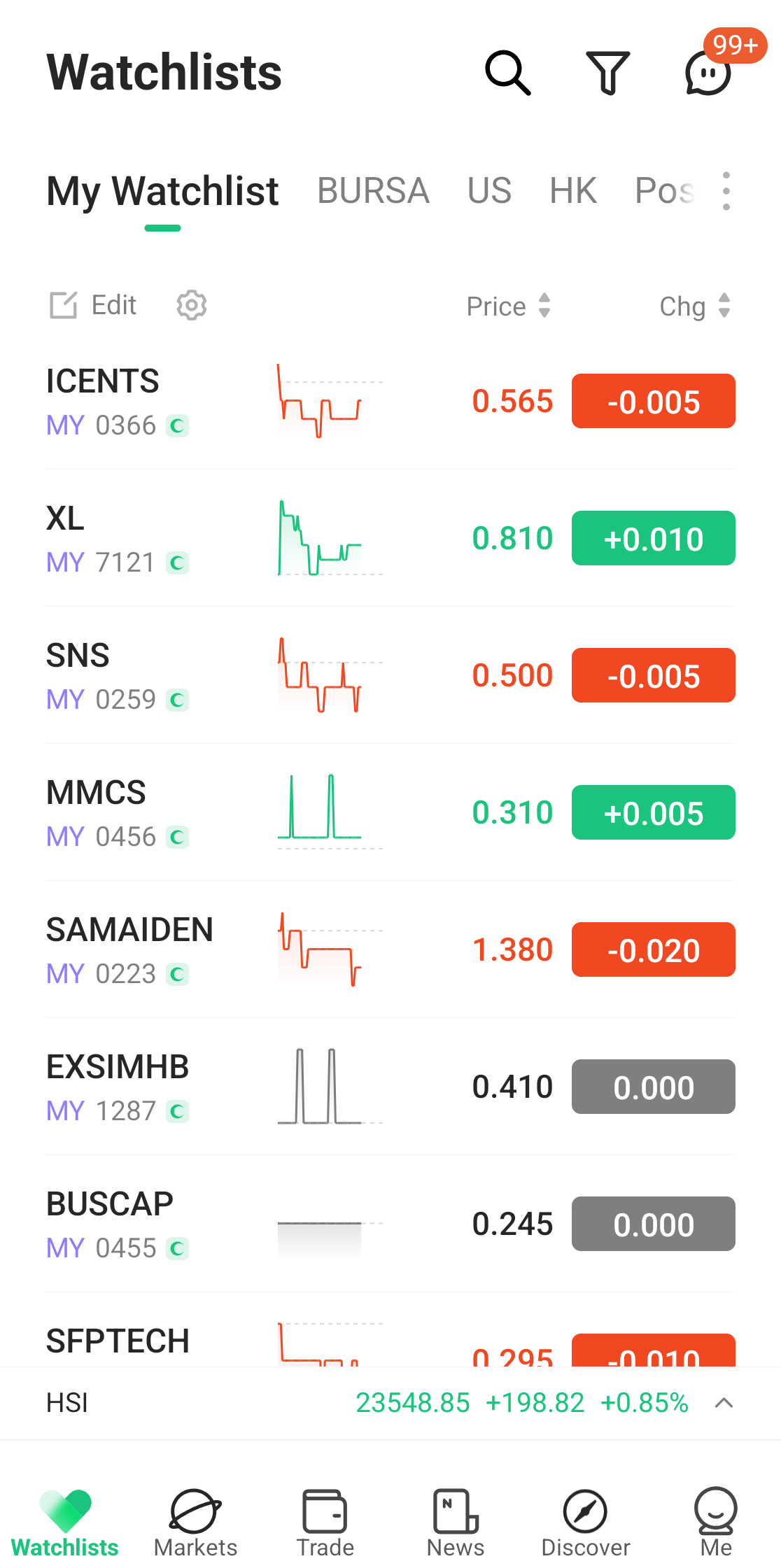
This is usually the first screen you see. Stocks are organised by category at the top — My Watchlist (your own list), BURSA, US, HK and Sentiment. Each row displays the stock code, a mini chart (sparkline), the current price and the change (Chg). The small symbol next to a stock's name indicates the Shariah-compliance status of that counter.
At the top there is a Search button (to find a stock), a Filter, and a Chat icon. Tap Edit to reorder, pin to the top, or remove a stock from the list. To study a single stock in more depth, tap on that stock's row — you will be taken to the Stock Detail Page (explained below).
Markets Tab: The Pulse of the Market
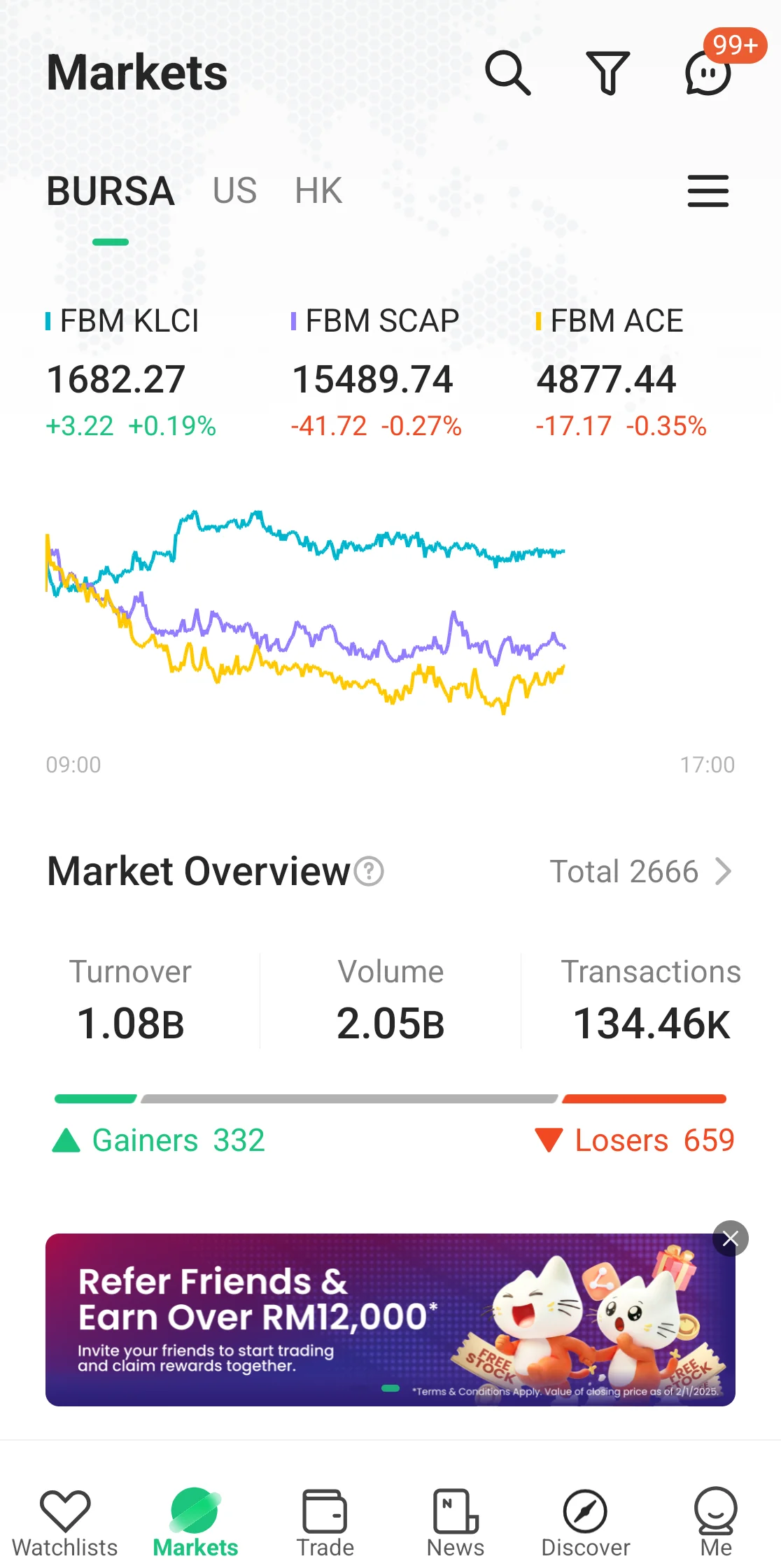
The Markets tab gives you the big picture. Here you will see the main Bursa indices such as KLCI, SCAP and ACE along with intraday charts. The Market Overview section shows turnover, volume, and the count of gainers and losers. You can also switch between the BURSA, US and HK markets.
Trade Tab: The Account Control Centre
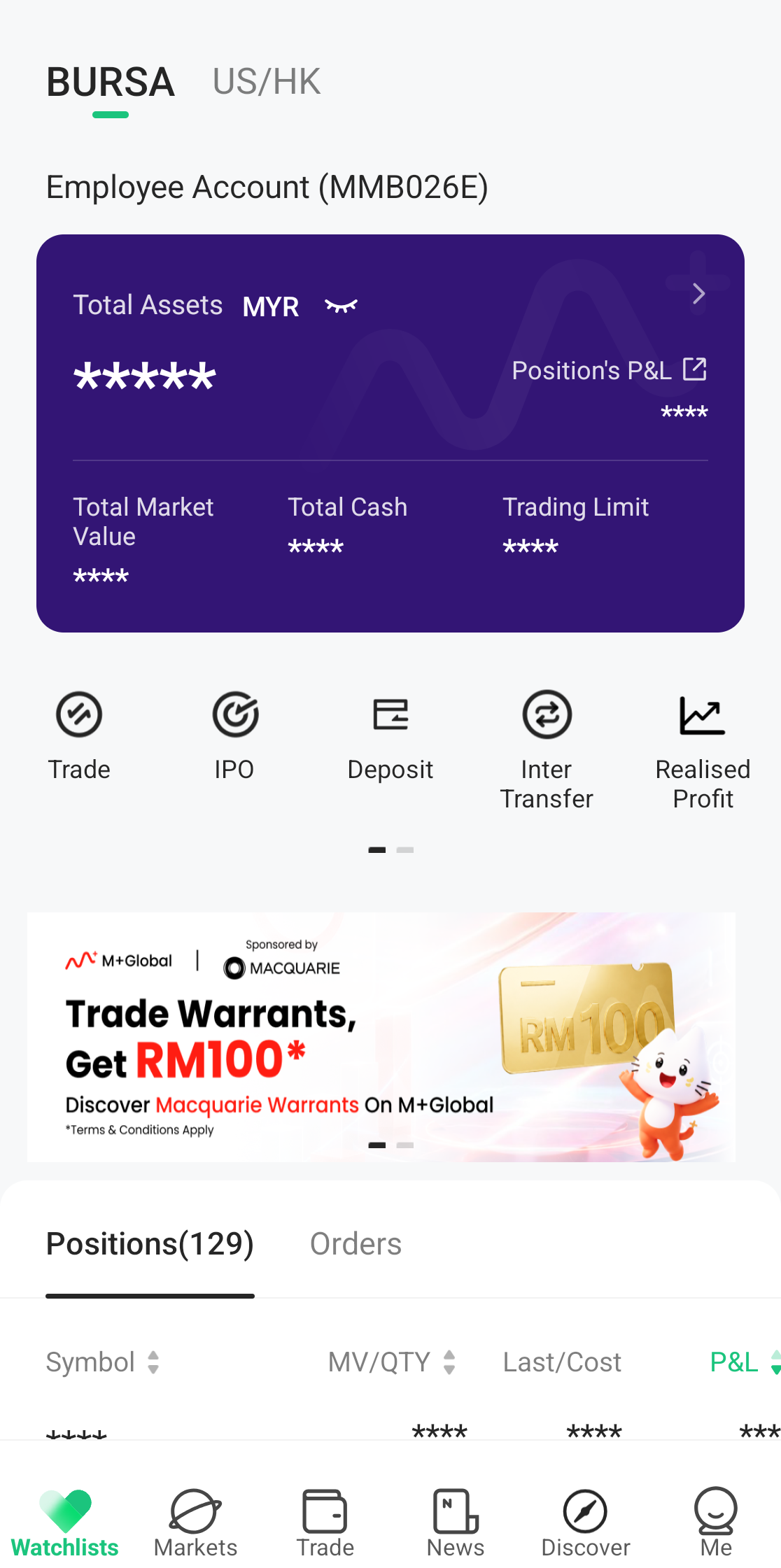
The Trade tab is the most important section. Because it contains your real financial data, this screen is usually protected by biometric authentication (fingerprint / face) every time it is opened. Among the things you will see:
- Account card — Total Assets, Position's P&L, Total Cash and Trading Limit. Tap the eye icon to hide/show all balances.
- Quick actions — Trade, IPO, Deposit, Inter Transfer and Realised Profit. Swipe left on this row to reveal the second page: Withdraw and Statements.
- Positions / Orders — the list of stocks you hold and the status of your orders.
You can switch between the BURSA account (your Bursa Malaysia account) and the US/HK account (your global cash account) at the top. To understand your account statement, see How to Check Your Statement in the M+ Global App.
The Stock Detail Page
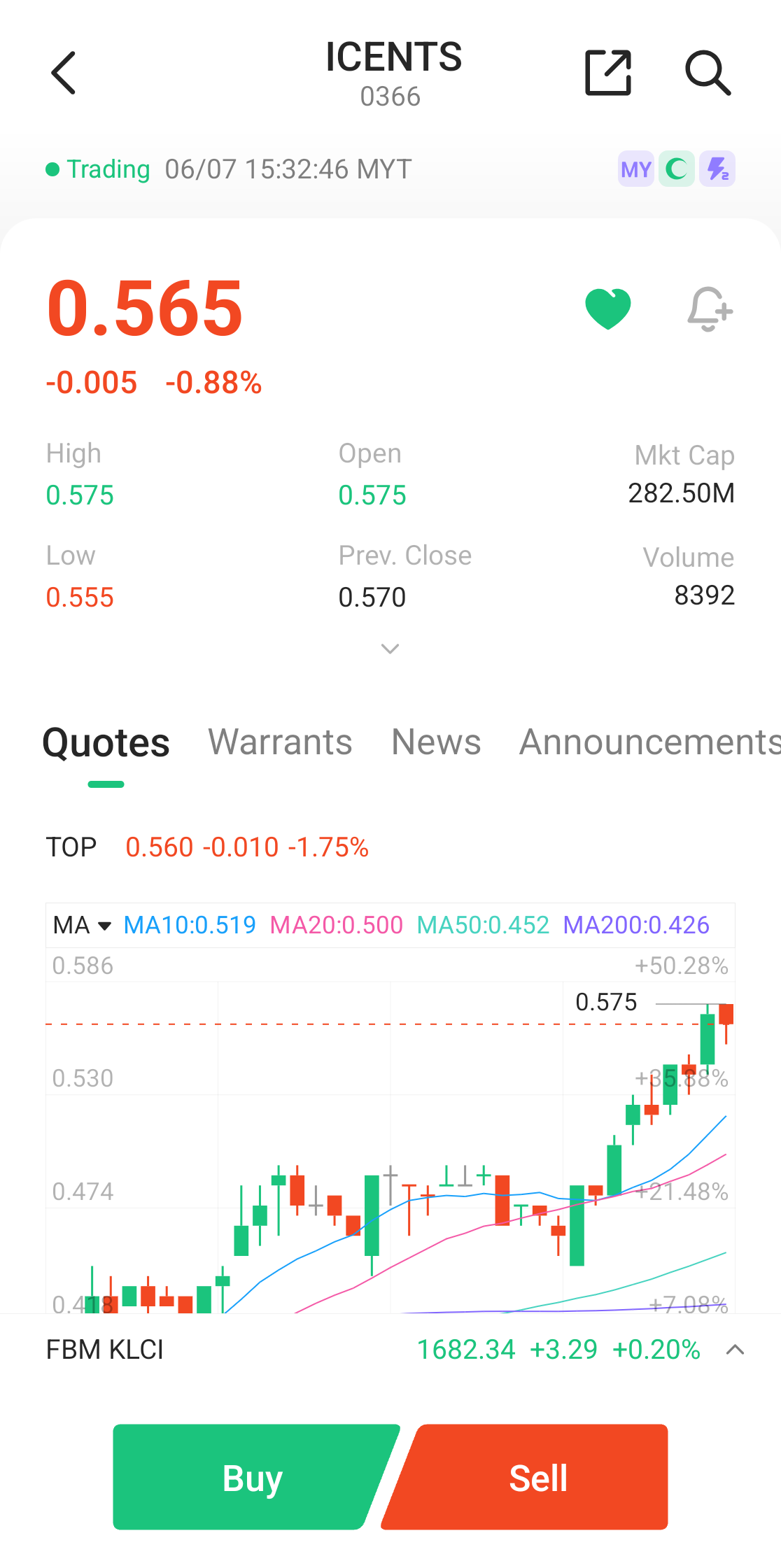
When you tap any stock, this page opens. It displays the price and percentage change, the ❤️ (watchlist) and 🔔 (alert) icons, statistics such as High, Open, Market Cap, Low, Prev Close and Volume, as well as the sub-tabs Quotes / Warrants / News / Announcements. Below it is a candlestick chart with moving average (MA) lines. The Buy and Sell buttons are always at the bottom. For a breakdown of every symbol on this screen, read How to Read the M+ Global Platform.
News, Discover & Me Tabs
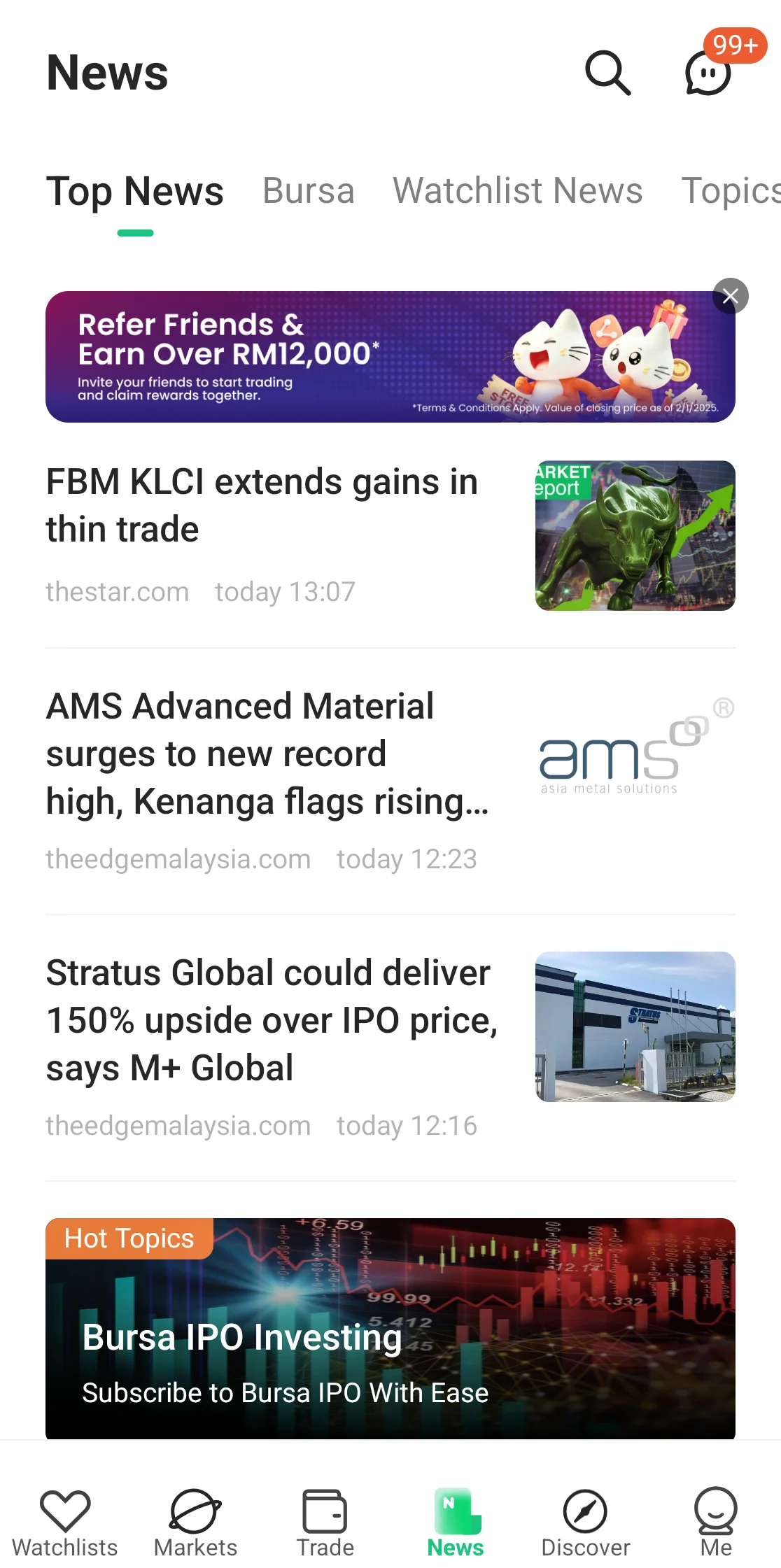
News gathers market and corporate news, organised by Top News, Bursa, Watchlist News and Topics. Each news card marks the related stocks.
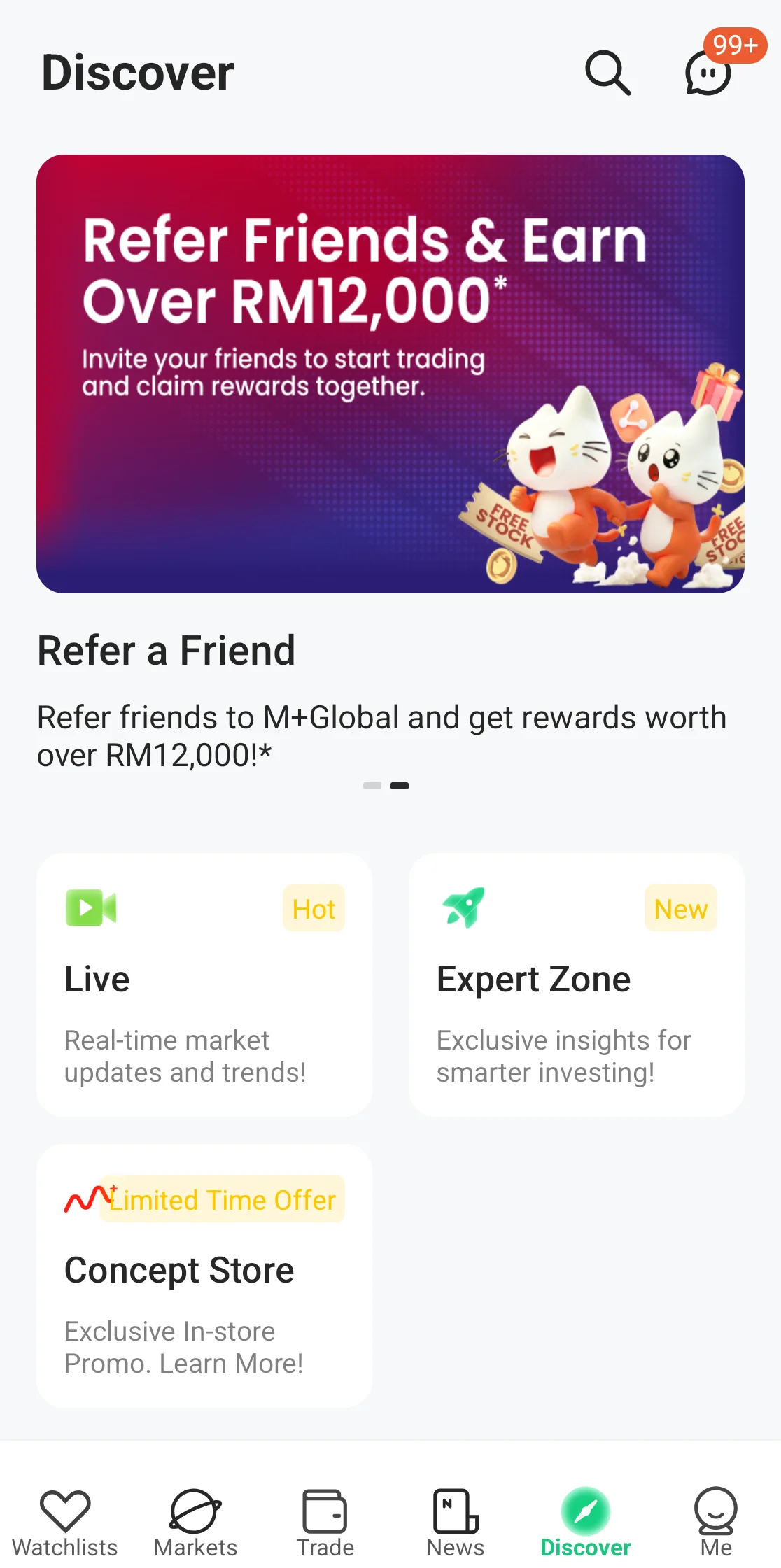
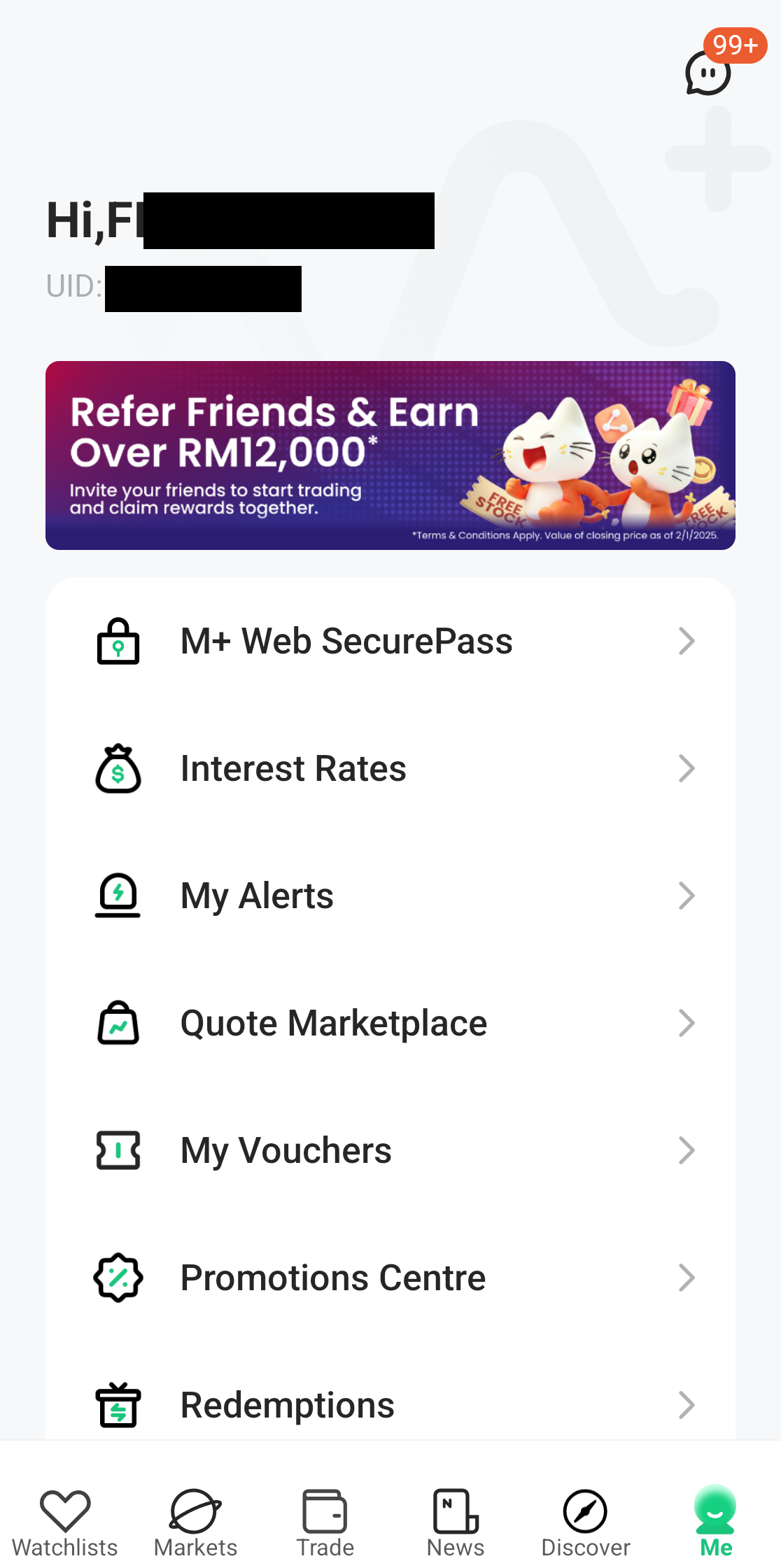
Discover is the content space — live streams (Live), Expert Zone, Concept Store and promotions such as warrants. Me, meanwhile, is your personal settings area: M+ Web SecurePass, Interest Rates, My Alerts, Quote Marketplace, My Vouchers, Promotions and Redemptions.
Common Tasks & Full Guides
Once you know every screen, here are the step-by-step guides for the most frequent tasks:
- Buy Bursa stocks — How to Buy Bursa Malaysia Shares (M+ Global)
- Sell Bursa stocks — How to Sell Bursa Malaysia Shares (M+ Global)
- Buy global stocks (US & HK) — How to Buy Global Shares (M+ Global)
- Order types — Order Types in M+ Global: Limit, Odd Lot & Stop Limit
- Deposit funds — How to Deposit into M+ Global
- Withdraw funds — How to Withdraw Money from M+ Global
- Apply for an IPO — How to Apply for a Bursa IPO Using M+ Global
- Understand fees & charges — Understanding Transaction Fees & Charges in the M+ Global App
- Check your Statement — How to Check Your Statement in the M+ Global App
Frequently Asked Questions (FAQ)
Is M+ Global the same as M+ Online?
Not in terms of interface. M+ Global is the mobile app for Bursa, US and HK stocks. M+ Online, on the other hand, is the web terminal on a computer. Both use the same Mplus CDS account. See How to Use the M+ Online Platform.
Why does the Trade tab ask for a fingerprint / face every time?
That is a biometric security layer to protect your account data and balances from being seen by others if someone else is holding your phone.
How do I tell whether a stock is Shariah-compliant in the app?
M+ Global displays a Shariah status indicator next to a stock's name. However, for certainty, always refer to the official Securities Commission Malaysia (SC) list, as the status can change at each review (usually May and November).
Do I need to convert Ringgit to USD first before buying US stocks?
You can hold cash in either MYR or USD. For details on conversion costs and global market fees, see Stock Trading Costs on M+ Global.
Conclusion
The key to being comfortable using M+ Global is understanding the role of each tab: Watchlists to track, Markets for the market overview, Trade to manage your account, and News/Discover/Me for information and settings. Once you know this map, every task becomes easier — just follow the specific guides we have linked above.
Don't have an account to get started yet? Open a CDS trading account through Mahersaham to invest in Bursa Malaysia shares as well as overseas markets such as the US and Hong Kong.
New to stocks? Download the free Stock Market Basics Ebook to master the fundamentals before you start trading.
Note: This article is for educational purposes only and is not investment advice or a recommendation to buy/sell any stock. Please do your own research and seek licensed professional advice before making any investment decision.