Understanding My Account: What You Need to Know

Today I want to share about how to understand Client Statement and Daily Business Done.
For those of you who regularly open the Mplus platform on your laptop or PC, you must have seen this section before, right?
But what is it used for?
Is it important for us as traders to know about it?
Continue scrolling down if you want to know more.
My Account
First of all, you need to log in to your Mplus CDS account on your laptop or PC.
If this is your first time logging in to your Mplus CDS account, you can refer to this article: How to Log In for the First Time to Your Mplus Account
At the top section, you will see several tabs, and one of them is My Account.
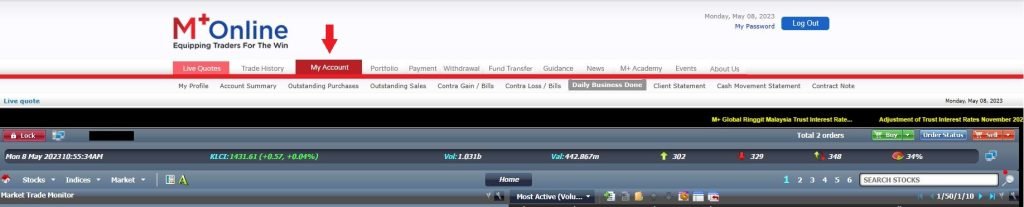
When you click the My Account tab, you will see several more tabs underneath it, namely:
- My Profile
- Account Summary
- Outstanding Purchases
- Outstanding Sales
- Contra Gains
- Contra Losses
- Daily Business Done
- Client Statement
- Cash Movement Statement
- Contract Note
All of these segments have their own purpose.
Their purpose is to keep on track your transactions in stock trading.
Sometimes people also ask why their trading journal records do not match the money remaining in their trust account.
So you can recheck all transactions along with the charges involved through this segment.
Please note that this guide is only for the Mplus broker; other platforms may differ.
Out of the 10 segments found under the My Account tab, I will focus on a few of the most important tabs for this article, namely: Account Summary, Contract Note, Daily Business Done, Client Statement and Cash Movement Statement.
Account Summary & Contract Note
To learn how to read the Account Summary, you can refer to the video and article that was previously written: Easy Way to Read Account Summary
Similarly for the Contract Note, you can read here: How to Calculate & Read Contract Note
Daily Business Done
Daily Business Done will show the stock transactions that you have made. To access this segment, you need to click My Account and then look for Daily Business Done.
After clicking Daily Business Done, a pop-up window will appear displaying all the transactions you have made previously.
The information displayed includes:
- date of purchase or sale
- stock code and name
- buy/sell quantity
- buy/sell price
- charges incurred during the transaction such as brokerage fee, stamp duty and clearing fee (For information about charges, refer here: Charges Involved in Stocks — There Are 4 Charges)
- actual transaction amount
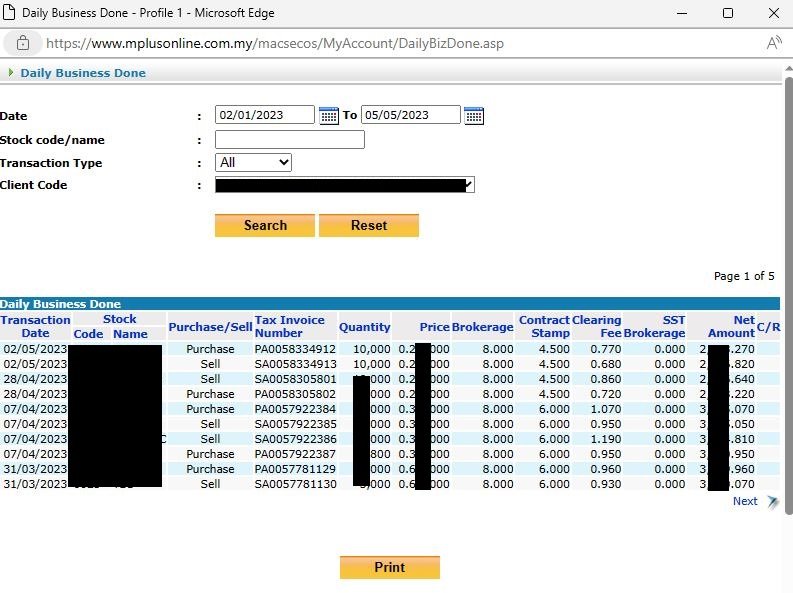
You can also filter searches by date, name or stock code and transaction type — whether all transactions, sell or buy only.
Transactions displayed are subject to a period of the last 1 year.
So, make it a habit to check the Daily Business Done segment at least once every 6 months.
You can also save the transaction information displayed on this page by clicking the print button.
Client Statement
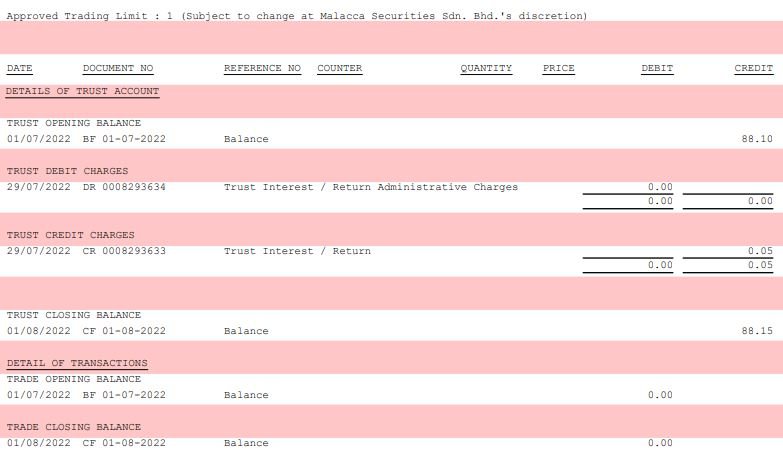
Client Statement will display all money movements in your trust account and transactions in greater detail.
To access this segment, you need to click My Account and then look for Client Statement.
After clicking Client Statement, a pop-up window will appear displaying a list of client statements arranged by month.
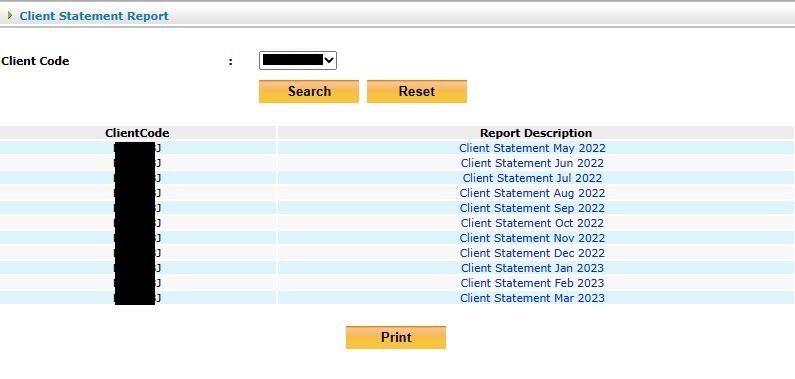
Click any statement to download the client statement in PDF format.
Below is an example of a client statement when no transactions occurred during that month:
Client Statement can also be downloaded directly through the Mplus mobile app:
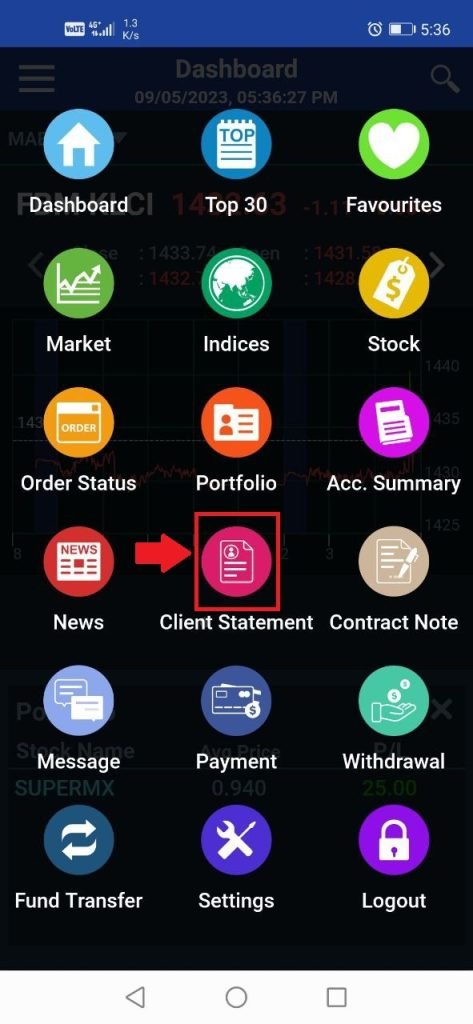
Tap "Client Statement" and the list of Client Statements arranged by month will be displayed. Click any client statement to download in PDF format.
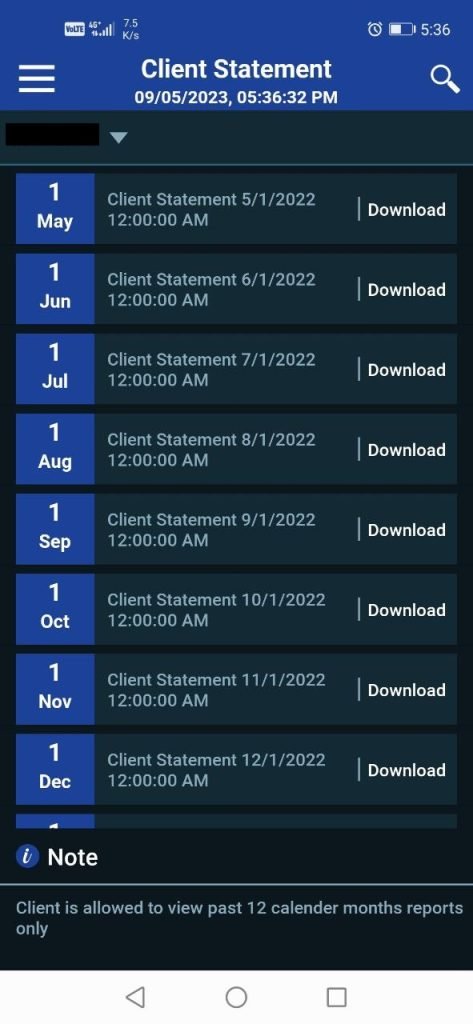
Client Statement can only be accessed for the last 12 months.
Cash Movement Statement
Cash Movement Statement is another statement that traders also need to pay attention to.
Cash Movement Statement will display the money movements in your trust account.
Click My Account and click on Cash Movement Statement.
A diagram like the one below will be displayed on your screen.
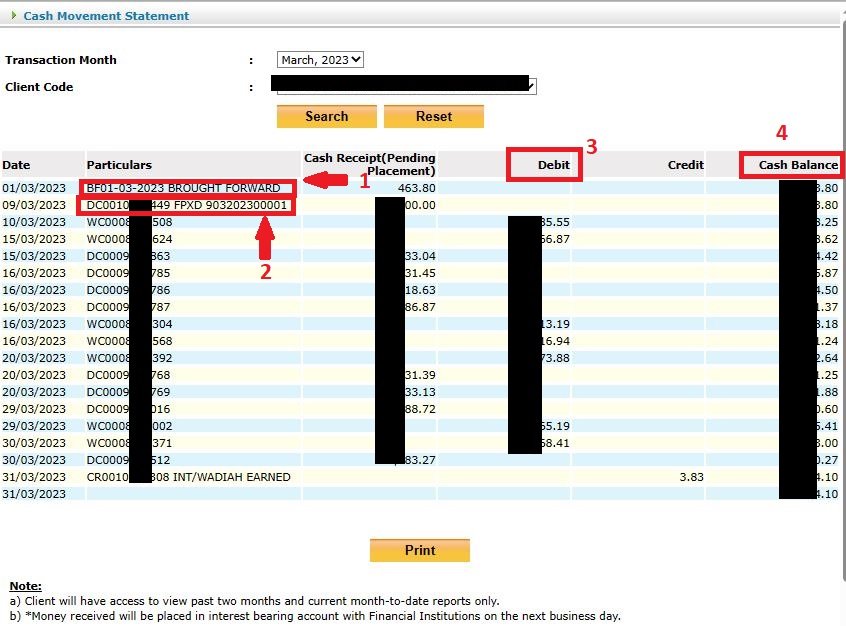
For the Cash Movement Statement, you can also filter by month.
Statements that can be displayed are only for the last 2 months and the current month.
In the red box marked 1 in the image above is the value carried forward from the previous month.
Item marked 2 is the deposit made into the trust account. If you look at that item, there is a code FPXD which means the deposit was made via FPX or online transfer.
Item 3, the debit section, shows the value that went out of your trust account. There are 2 reasons money goes out — either used to make a stock purchase transaction or you withdrew money from the trust account.
Meanwhile, the value in the cash receipt section is the value that entered the trust account after a stock sale transaction occurred.
Item 4, the cash balance, shows the remaining balance still in your trust account.
So you can keep track of how much money is still in your trust account.
Besides that, there is also a credit item. Credit means money coming in. Did you notice that there is a money value in the credit box?
That is the hibah (dividend/interest) for the money in your trust account that you did not use. Remember, the cash movement statement is for each month.
So you can check in detail for each month. Most importantly, save the data if you actively make stock transactions.
As I recommended above, check, copy and save the data in Excel once a month, or once every 3 months or 6 months.
Conclusion
Each statement has its own information and function.
As a successful trader, we should be aware of the various statements available.
Why? Certainly to keep on track all transactions in stock trading.
Hope this is beneficial!
Frequently Asked Questions (FAQ)
1. What is a Client Statement and why is it important?
A Client Statement is a document that shows all your stock buy and sell transactions including account balance, profits and losses. It is important for monitoring investment performance and maintaining financial records.
2. Where can I access the Client Statement in Mplus?
You can access the Client Statement through the Mplus platform under the My Account section. It is available for download and can be viewed according to the desired month period.
3. What is a Cash Movement Statement?
A Cash Movement Statement shows the flow of money in and out of your trust account. It includes deposits, withdrawals, stock purchases, stock sales, and also hibah on unused cash balances.
4. How often should I check the Client Statement?
It is recommended to check at least once a month. For active traders, weekly checks are better. Make sure you also save copies of the data in Excel for future reference.
Don't have an account to start investing yet? Open a CDS account with Mahersaham today and get access to the Mplus platform. Also download our free stock basics ebook to learn from the fundamentals.