How to Open Your Bursa Anywhere E-Statement (PDF Password Formula)

Every month, Bursa Malaysia Depository issues a CDS statement that records your share holdings and movements. This statement used to be sent by post; it is now available as a PDF e-statement inside the Bursa Anywhere app — free of charge and accessible at any time.
But there is one thing that often trips people up: the PDF is password-protected, and many do not know the format. This article shows you how to access your e-statement, along with the correct password formula.
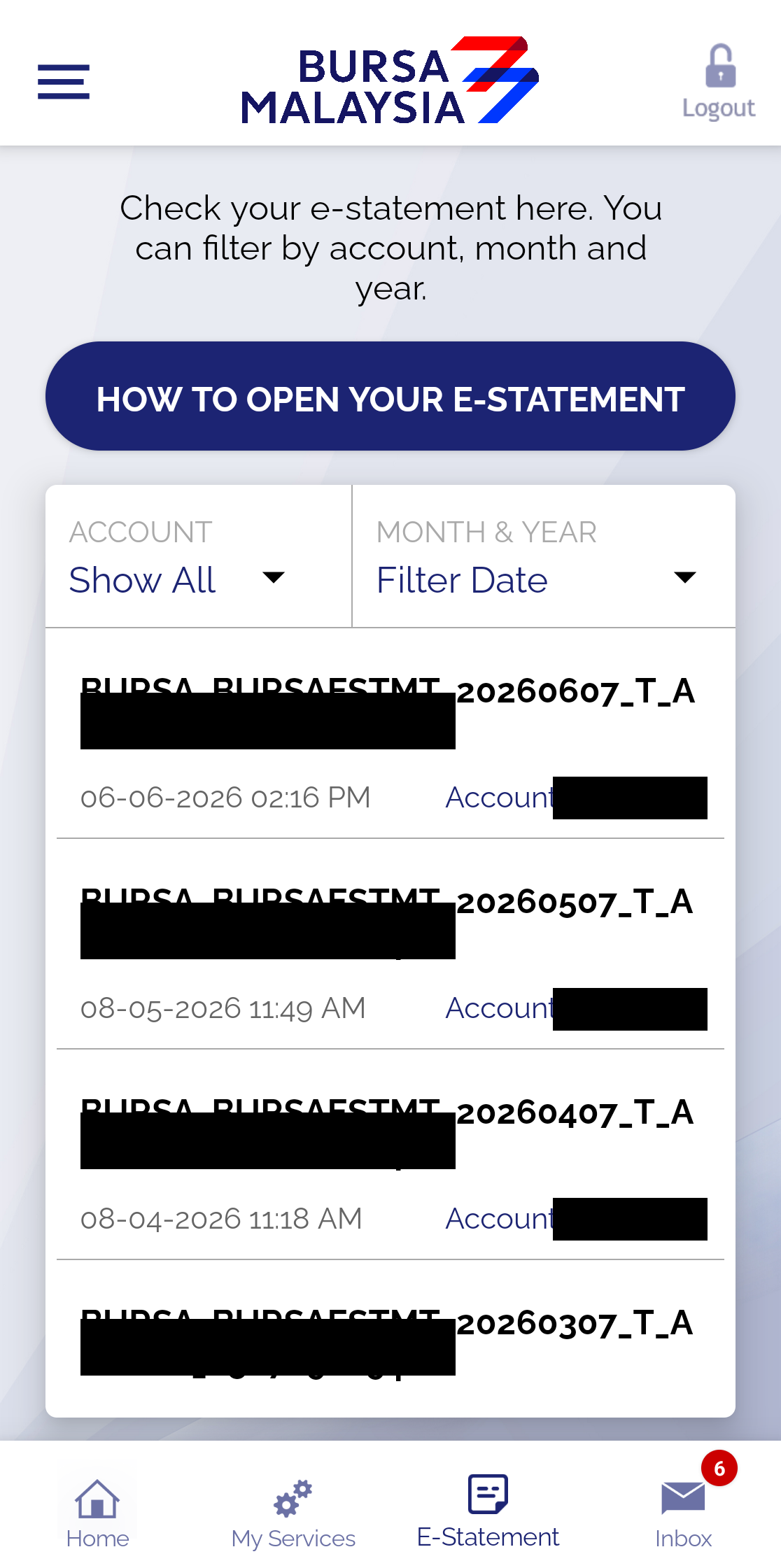
How to Access the E-Statement
- Step 1: Log in to the Bursa Anywhere app.
- Step 2: Tap the E-Statement tab at the bottom of the screen.
- Step 3: Statements are listed by date. Use the ACCOUNT filter (if you have more than one CDS account) and the MONTH & YEAR filter to find a specific statement.
- Step 4: Tap a statement to download and open it.
Each file is named in the format BURSA_BURSAESTMT_[tarikh]_[akaun].pdf so you can easily identify the month and account.
PDF Password: The Correct Formula
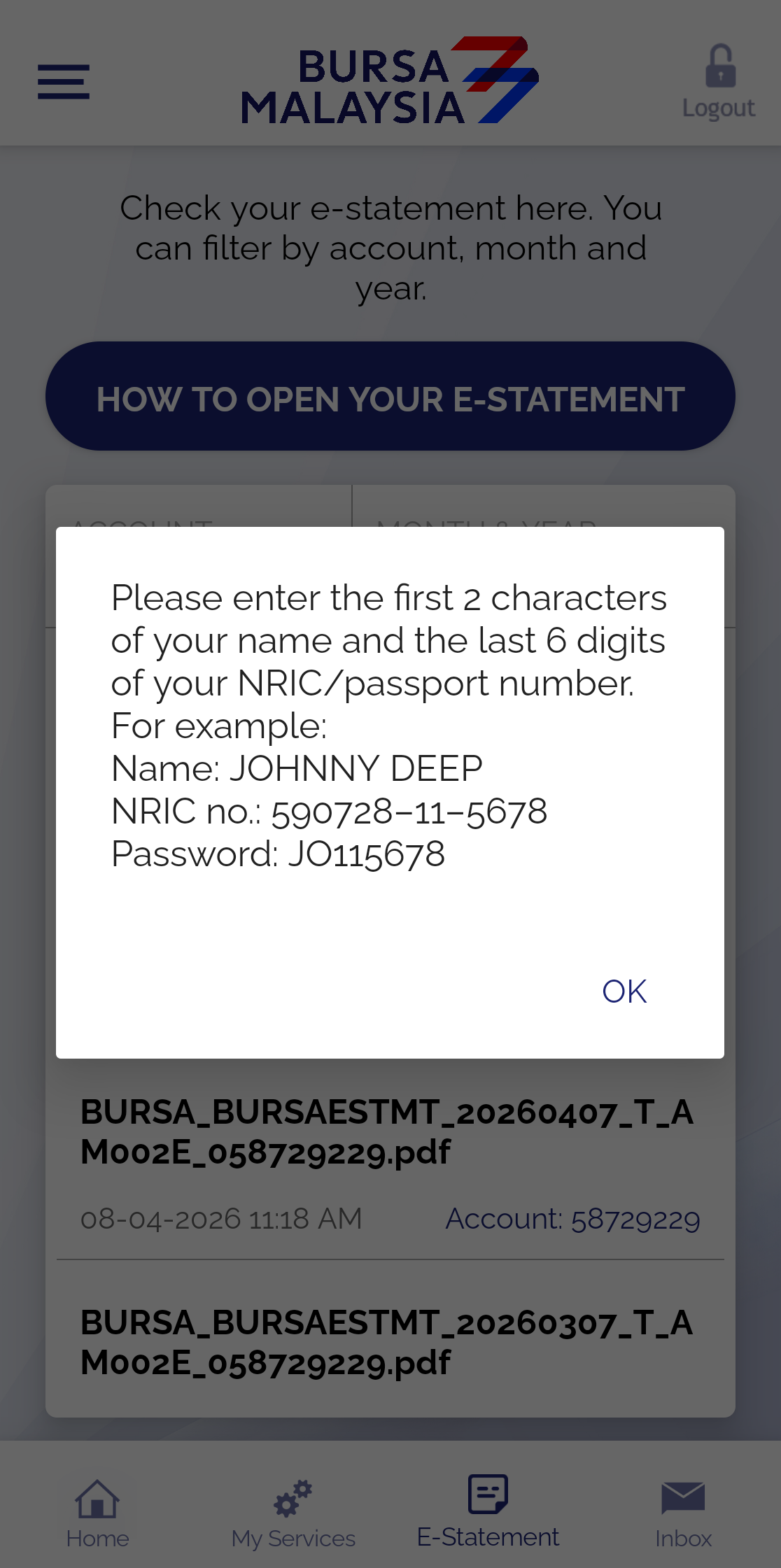
When you open the PDF, it will ask for a password. The formula is:
The first 2 letters of your name + the last 6 digits of your NRIC/passport (in capital letters).
The example given by the app itself:
- Name: JOHNNY DEEP
- NRIC: 590728-11-5678
- Password: JO115678
Note that the last 6 digits of the NRIC include the last two middle digits (11) and the four digits at the end (5678) — not just the final four digits. If you forget this formula, tap the HOW TO OPEN YOUR E-STATEMENT button at the top of the E-Statement tab.
What Is in the CDS Statement?
The monthly CDS statement shows your share holdings in each CDS account as at month-end, plus the movements (in/out) throughout that month — including purchases, sales, transfers, and corporate actions such as bonus issues. It is the official record of your share ownership at the depository level.
It is important to understand how it differs from a broker statement: the CDS statement shows ownership (custody), whereas a broker statement (for example the M+ Monthly Client Statement) shows your transactions and cash position with that broker.
Frequently Asked Questions (FAQ)
Why won't my password open the PDF?
Double-check: the first 2 letters of your name (as spelt in your CDS records, in capital letters) + the last 6 digits of your NRIC — not 4 digits. Example: an NRIC ending in 11-5678 → use 115678.
How long are e-statements kept in the app?
Statements from previous months remain available in the list — use the Month & Year filter to go back to older months.
I have 2 CDS accounts. Are the statements combined or separate?
It depends on your settings. Through My Services → Request for Consolidation & Revocation, you can choose a consolidated statement (one statement for all accounts) or unconsolidated (a separate statement for each account).
Is this e-statement the same as a broker statement?
No. The Bursa Anywhere e-statement is a depository (CDS) statement — a record of share ownership. A broker statement is a record of your transactions and cash with the broker.
Conclusion
The Bursa Anywhere e-statement gives you an official record of your share ownership every month, free within the app. Remember the password formula — the first 2 letters of your name + the last 6 digits of your NRIC — and use the account/month filters to find the statement you need. For a full map of the app's features, see Get to Know the Bursa Anywhere App.
Don't have a CDS account to get started? Open a CDS trading account through Mahersaham to invest in Bursa Malaysia shares as well as foreign markets such as the US and Hong Kong.
New to the stock market? Download the free Stock Investing Basics Ebook to master the fundamentals before you start trading.
Note: This article is for educational purposes only and is not investment advice or a recommendation to buy or sell any stock. Please do your own research and seek advice from a licensed professional before making any investment decisions.