How to Check Your Portfolio & Shareholdings in Bursa Anywhere

Did you know you can check all your share holdings — across every CDS account and every broker — on a single screen? That is what the Home tab in the Bursa Anywhere app does. It offers three different views: Account View, Stock View and Chart View, each answering a different question about your portfolio.
This article explains how to read all three views, as well as the CDS Account Portfolio screen that shows the detailed holdings of each account.
Account View: A List of Your CDS Accounts
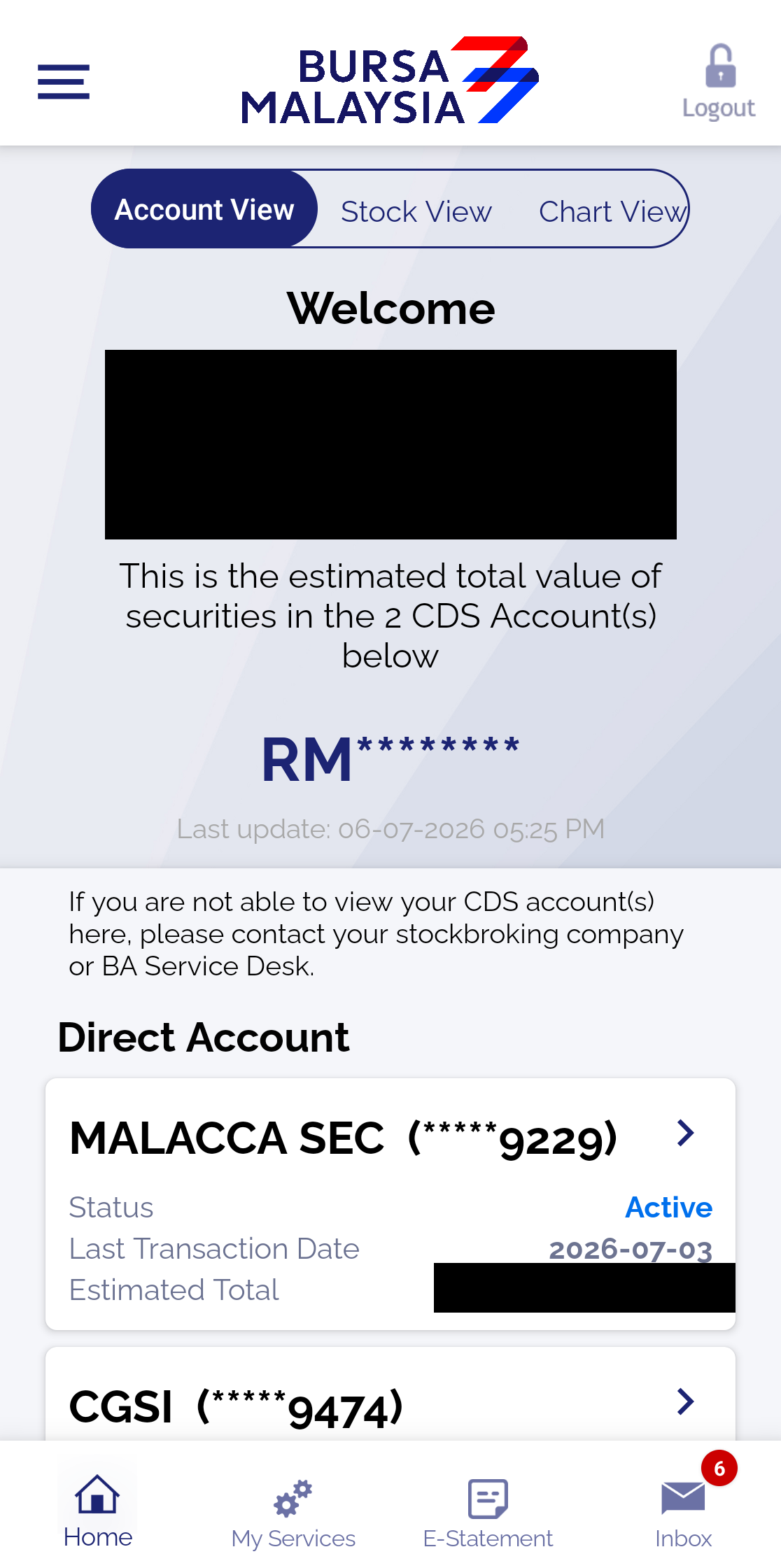
This is the default view after logging in. It answers: "What CDS accounts do I have, and how much is each one worth?"
- Estimated total value is shown at the top — masked (RM********) by default for privacy.
- Direct Account cards — each of your Direct CDS accounts is listed with the broker's name (for example MALACCA SEC), a partially masked account number, the Status (Active/Inactive/Dormant), the last transaction date and the estimated account value.
All Direct CDS accounts under your NRIC appear here automatically — regardless of which broker they are with. If an account does not appear, contact your broker or the BA Service Desk. Want to know the difference between Direct and Nominee accounts? Read Direct CDS Account vs Nominee Account.
Tap any account card to open the CDS Account Portfolio screen (explained below).
Stock View: Aggregated Holdings Across All Accounts
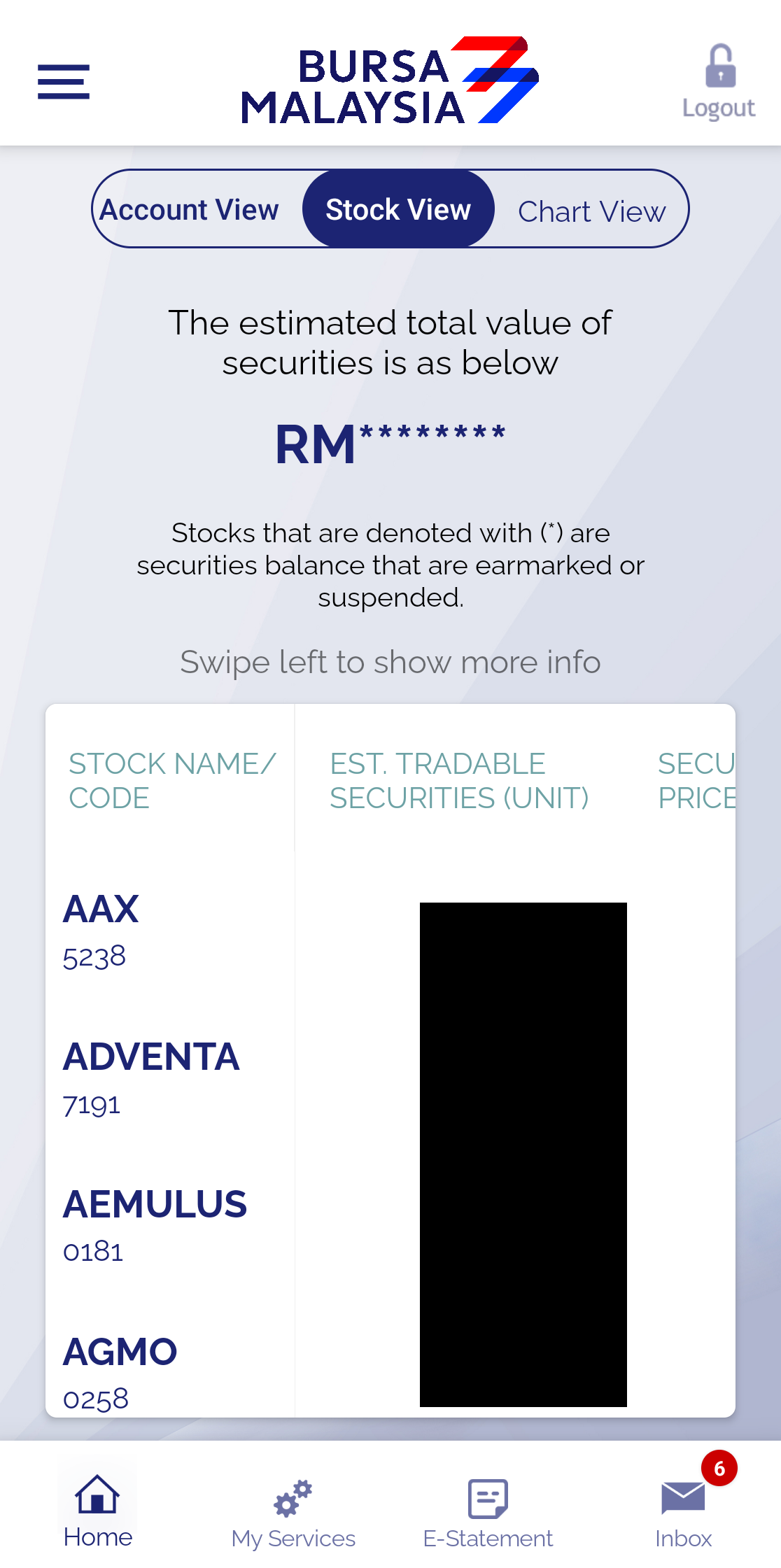
Stock View answers: "Overall, what shares do I hold?" It combines the holdings from all your CDS accounts into a single table, sorted alphabetically:
- Stock Name / Code — the stock's name and code
- Est. Tradable Securities (Unit) — the units available for trading
- Swipe left for extra columns: current price, day's change (%) and value
Stocks marked with (*) are balances that are earmarked or suspended — they cannot be traded for the time being.
Chart View: Value Breakdown by Account
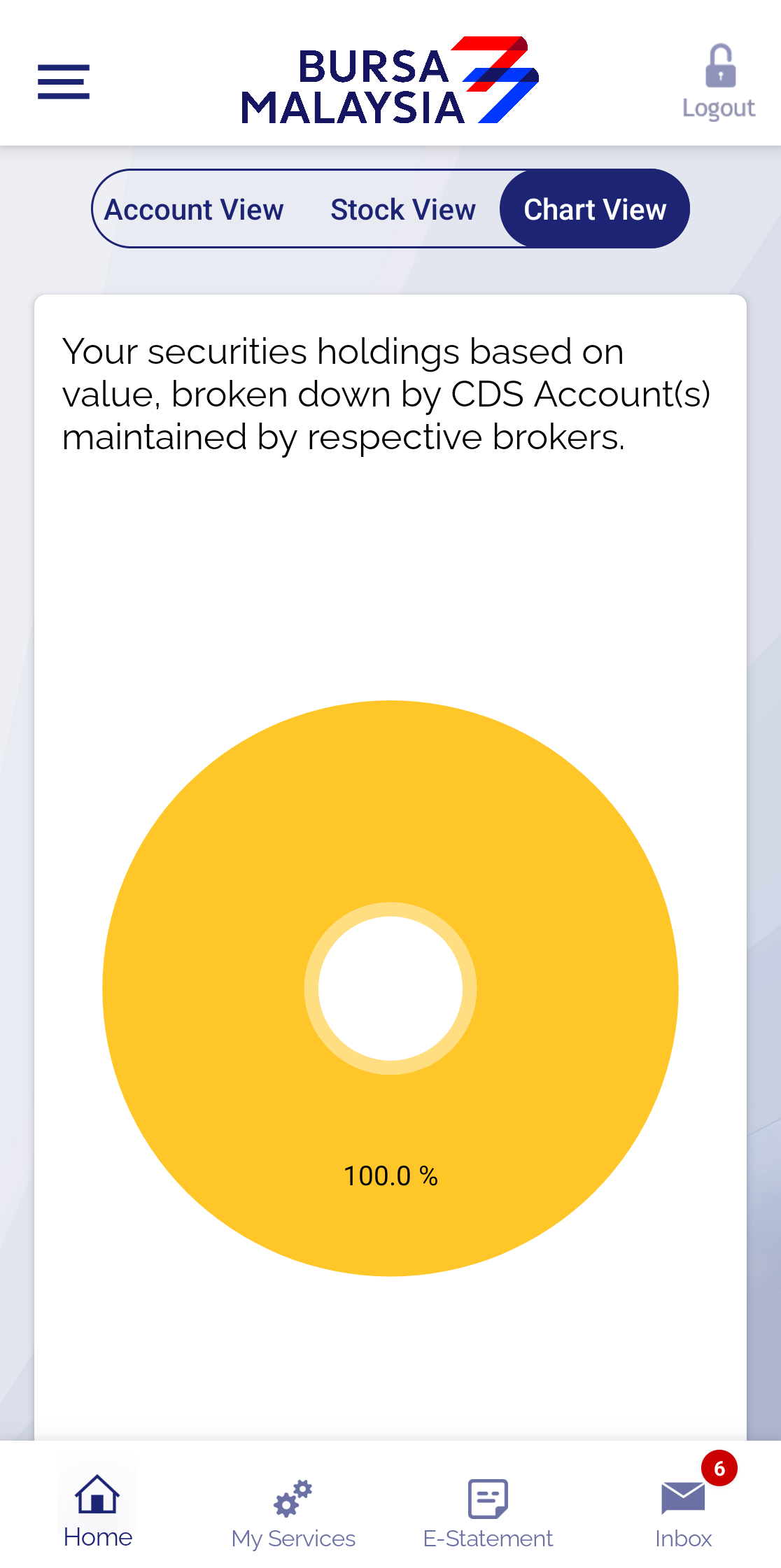
Chart View answers: "Which account holds most of my portfolio's value?" A donut chart shows the percentage of your securities value by CDS account (broker). If you are only active with one broker, the chart will show 100%, as in the example above.
CDS Account Portfolio: Holdings Per Account
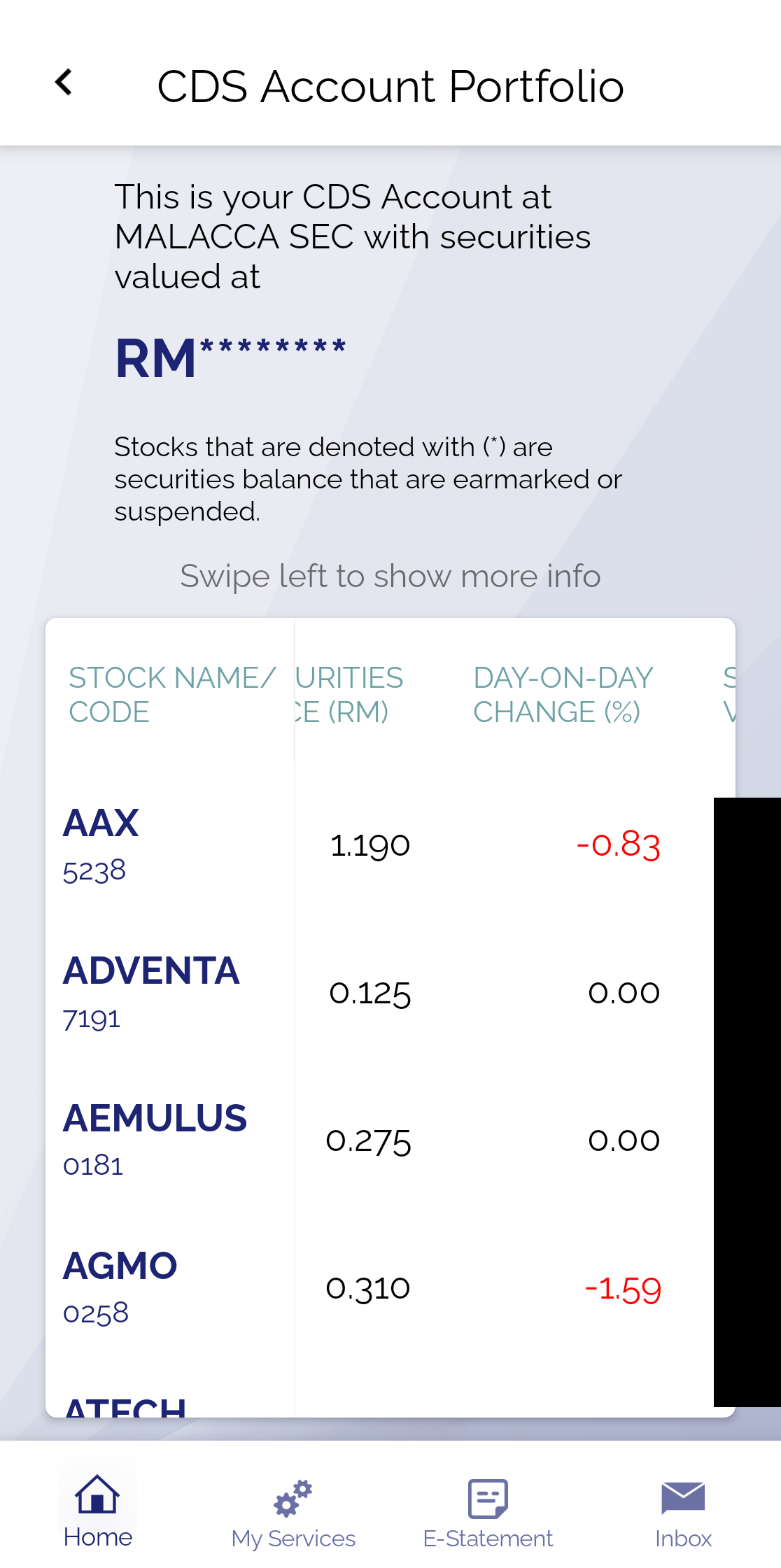
From Account View, tap an account card to see the holdings of that account only. The format is the same as Stock View — a table of stocks with units, and swipe left for extra columns:
- Securities Price (RM) — the current market price
- Day-on-Day Change (%) — the change versus the previous day (green for up, red for down)
- Securities Value — the estimated value of that holding
This is the most useful screen for a quick audit: confirm that the units in your CDS match your broker's records, especially after a corporate action. If your shares seem to have "gone missing" after a stock split, read this explanation.
Important Notes About the Figures in the App
- Values are estimated based on the latest market prices — not an official valuation.
- Holdings data is updated at the end of the trading day; today's purchases usually appear after T+2 settlement.
- Bursa Anywhere shows holdings at the depository level. For your cash position and trading P&L, refer to your broker's app such as M+ Global.
Frequently Asked Questions (FAQ)
Why is the total portfolio value masked as RM********?
It is the app's default privacy feature, so your full value is not exposed to people around you. You can still check the details of your holdings in the table.
Why haven't the shares I bought today appeared yet?
CDS holdings are updated after trade settlement (T+2). Check again after two working days.
What does the (*) mark on some stocks mean?
Those balances are earmarked or suspended — for example, shares in the middle of a transfer, pledged as collateral, or a suspended counter — and cannot be traded temporarily.
The value in Bursa Anywhere doesn't match my broker's app. Why?
The update times differ (Bursa Anywhere uses the "Last update" time shown on screen), and your broker may calculate positions including unsettled trades. Use your official statements for the definitive figures.
Conclusion
The three Home views answer three different questions: Account View — what accounts do I have; Stock View — what shares do I hold overall; Chart View — where is my value concentrated. Tap an account card to drill into detailed holdings, and swipe the table left for prices and the day's change. Make this check a monthly routine alongside your CDS e-statement.
Don't have a CDS account to get started? Open a CDS trading account through Mahersaham to invest in Bursa Malaysia shares as well as overseas markets such as the US and Hong Kong.
New to the stock market? Download the free Basic Share Investment Ebook to master the fundamentals before you start trading.
Note: This article is for educational purposes only and is not investment advice or a recommendation to buy or sell any stock. Please do your own research and seek advice from a licensed professional before making any investment decisions.