How to Use M+ Online (Web Terminal): From Login to Reading Live Quotes

Many new investors confuse two different M+ platforms: M+ Online (the web terminal at mplusonline.com.my) and the M+ Global app (a mobile app for Bursa, US and HK stocks). This article focuses on the M+ Online web terminal - the full trading platform you open through a desktop browser, where you read live quotes, place orders and manage your account.
We will show you step by step how to log in (including OTP verification), how to read that dense Live Quotes screen, and what each main menu does - then connect you to specific guides for tasks like buying, selling and depositing. Think of this article as your reference hub for everything about the M+ Online terminal.
Note: this platform is provided by Malacca Securities. To log in, you first need a CDS Mplus account - if you do not have one yet, read how to open a CDS Mplus account.
M+ Online (Web) vs M+ Global (App): Which One?
Before starting, it is important to understand the difference so you do not pick the wrong platform:
- M+ Online (mplusonline.com.my) - the browser-based web terminal on your computer. A classic, data-dense interface, ideal for traders who want to monitor many stocks and place orders quickly on a large screen. This is the focus of this article.
- M+ Global (mobile app) - a modern app for Bursa stocks plus global US and Hong Kong markets. More beginner-friendly and portable. Read how to register an M+ Global account for the app guide.
Both use the same CDS Mplus account - only the interface differs.
Logging In to M+ Online
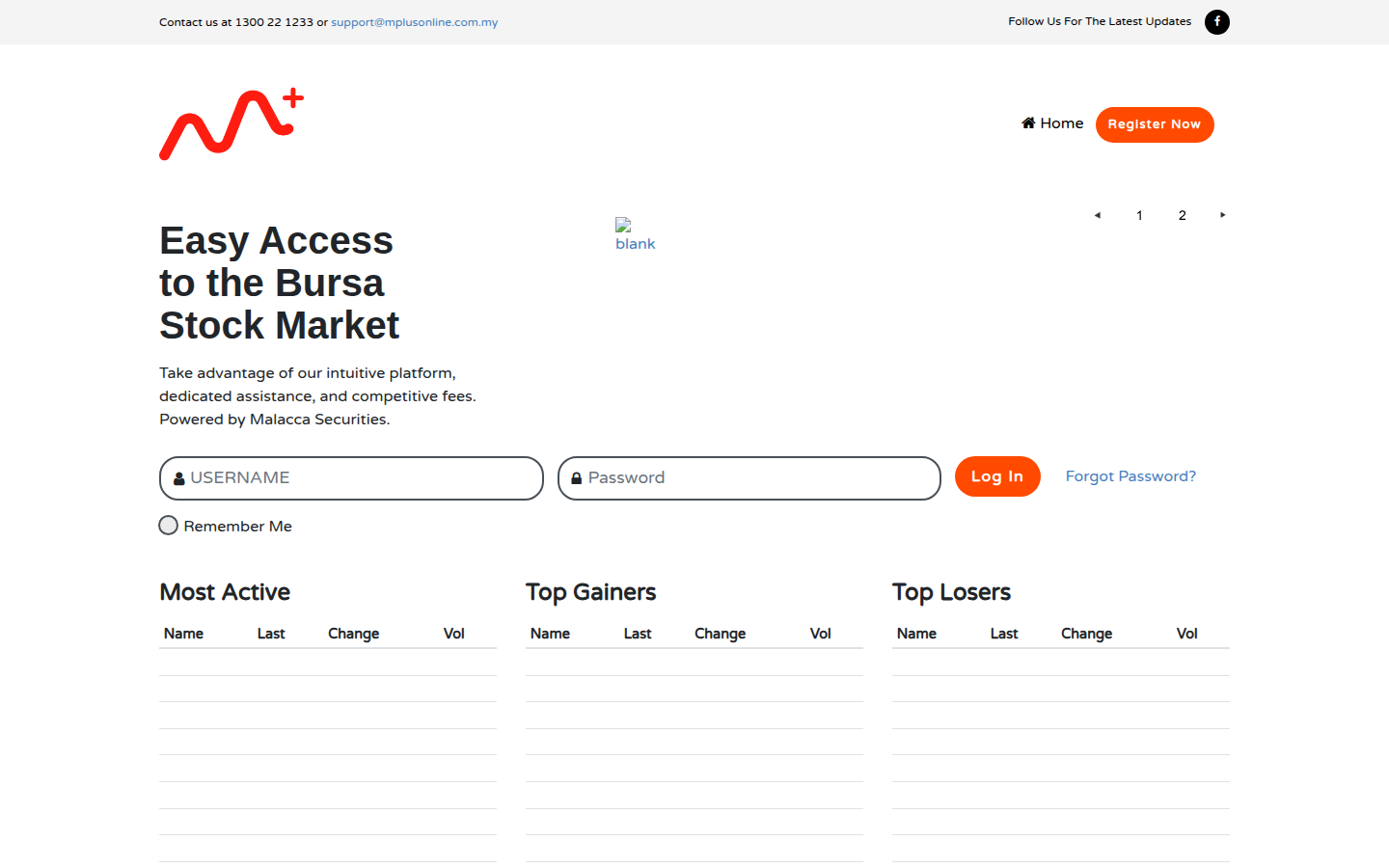
Open your browser and go to mplusonline.com.my. The homepage displays the login form directly. Fill in:
- Username - the user ID you received by email after your CDS account was activated
- Password - the password you set
Then click Log In. Forgot your password? Click "Forgot Password?" next to the Log In button.
OTP Verification (2FA)

For security, M+ Online uses two-factor authentication (2FA). After your username and password are accepted, a 6-digit OTP code is sent by SMS to your registered phone number. Enter that code into the six boxes provided, then click Verify OTP.
If the code does not arrive, wait for the "Able to resend" counter to finish and click to send again. After successful verification, you go straight to the Live Quotes screen.
Understanding the Live Quotes Screen
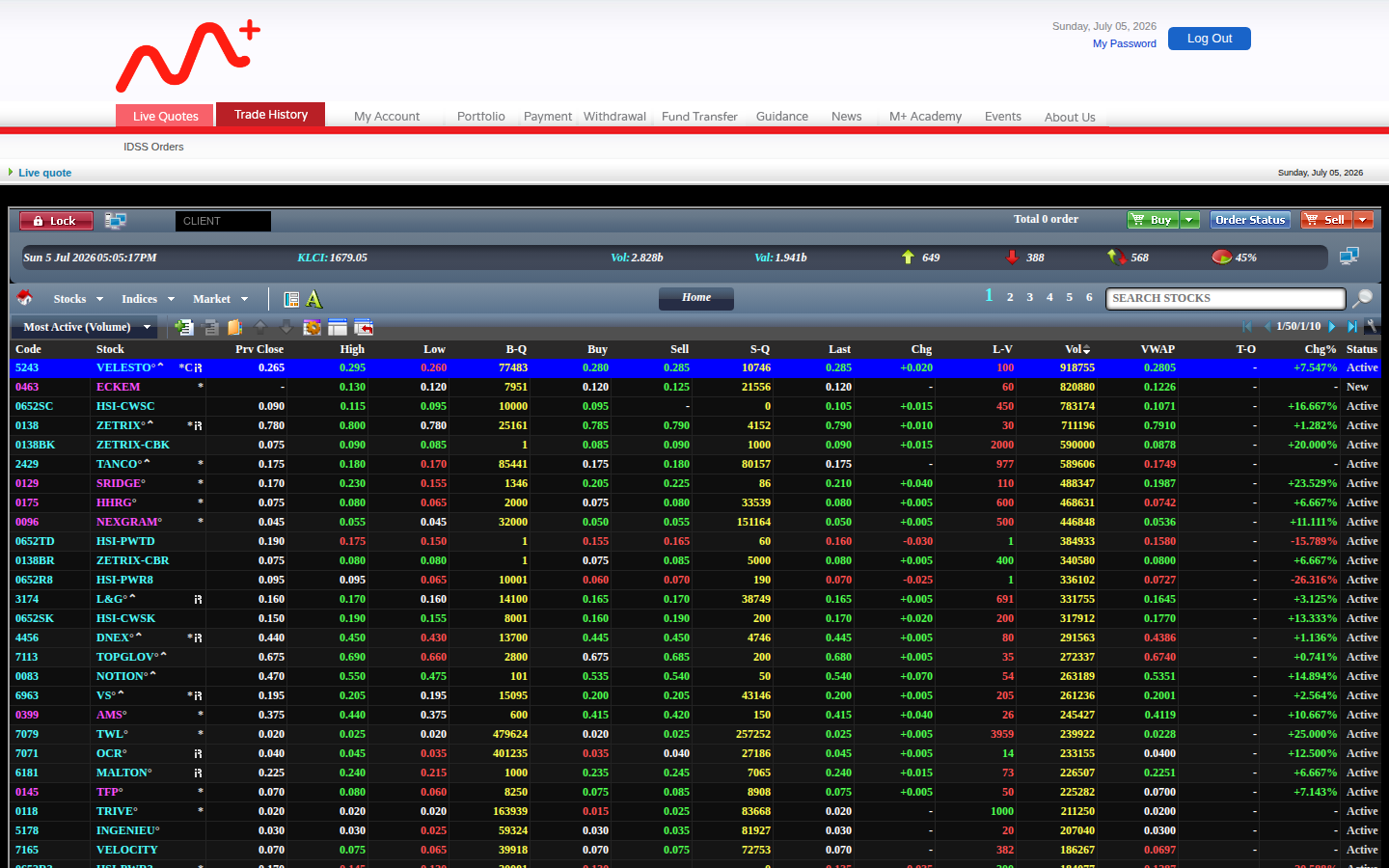
This is the terminal's main screen. It looks dense at first, but it is actually logically arranged. Let us break down the key parts:
The Order Bar (top black strip)
- Lock - lock the screen while you step away from your computer
- Total order - the number of your active orders today
- Buy / Sell / Order Status - buttons to place buy orders, sell orders, and check order status
The Market Statistics Strip
Shows the current time, the KLCI (composite index), the market's total trading volume and value, and the count of stocks up (green), down (red) and unchanged.
The Quote Table

Each row is one stock. The important columns:
- Code / Stock - the stock code and name
- Prv Close - yesterday's closing price
- High / Low - today's highest and lowest price
- B-Q / Buy - the best bid quantity and best bid price
- Sell / S-Q - the best ask price and its quantity
- Last - the last transacted price
- Chg / Chg% - the price change (value and percentage) versus Prv Close
- Vol - the number of units traded today
- VWAP - the volume-weighted average price
- Status - the stock's trading status (Active, New, etc.)
You can sort the list (for example, Most Active by volume), use the Search Stocks box to find a specific stock, and switch between list pages using the numbers 1 to 6 at the top right.
The Terminal's Main Menu

At the top of the terminal is a menu bar. A summary of each item:
- Live Quotes - the main quote screen (covered above)
- Trade History - your trading transaction history
- My Account - account details and settings
- Portfolio - your current holdings and portfolio value
- Payment - make a payment / deposit for trading
- Withdrawal - withdraw money from your trading account
- Fund Transfer - move funds between accounts
- Guidance / M+ Academy - help materials and learning content
- News - market news and corporate announcements
Common Tasks: Buy, Sell & Fund Your Account
For detailed steps of each task (with their own screenshots), refer to these specific guides:
- Buy and sell shares - how to buy and sell shares on the MPLUS platform
- Fund your account - use the Payment and Withdrawal menus in the terminal to deposit and withdraw for trading
- Global stocks (US & HK) - for international markets, use the M+ Global app; see M+ Global stock trading costs
On Your Phone: The M+ Global App
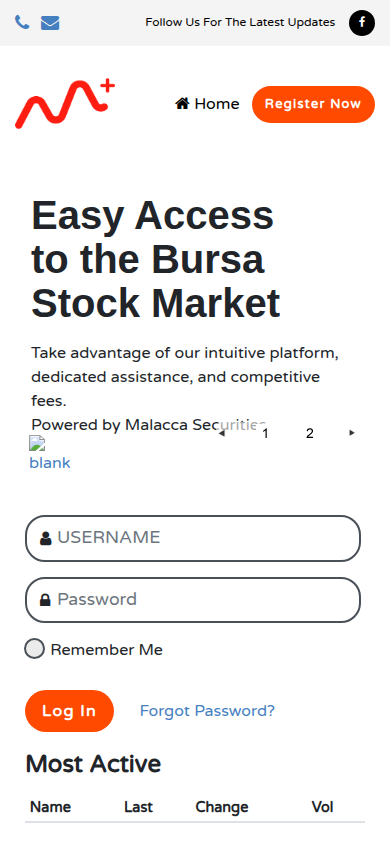
The M+ Online web terminal can be opened in a phone browser, but its interface is designed for large screens. For a smoother mobile experience, use the M+ Global app - it is more touch-friendly and supports Bursa, US and HK stocks. See how to register an M+ Global account.
Frequently Asked Questions (FAQ)
What is the difference between M+ Online and M+ Global?
M+ Online is the classic web terminal in a desktop browser - data-dense, ideal for monitoring many stocks. M+ Global is a modern mobile app that also supports US and Hong Kong stocks. Both use the same CDS Mplus account.
What account do I need to log in to M+ Online?
You need an activated CDS Mplus account. Once your account is ready, you receive a user ID and password by email. No account yet? Read how to open a CDS Mplus account.
Why do I need to enter an OTP every time I log in?
The OTP is two-factor authentication (2FA) to protect your account. A 6-digit code is sent to your registered phone each time you log in, ensuring only you can access your trading account.
The OTP code did not arrive. What should I do?
Wait for the "Able to resend" counter to finish, then click to resend. Make sure your registered phone number is correct and has coverage. If problems persist, contact Malacca Securities customer service at 1300 22 1233.
What do the B-Q and S-Q columns mean in the quote table?
B-Q (Buy Quantity) is the number of units at the best bid, while S-Q (Sell Quantity) is the quantity at the best ask. They help you gauge a stock's supply and demand.
Can I trade US and Hong Kong stocks on the M+ Online web terminal?
For global stocks (US, HK), use the M+ Global app designed for international markets. The M+ Online web terminal focuses on the Bursa Malaysia market.
Is this terminal safe to use?
Yes. M+ Online is operated by Malacca Securities, a Participating Organisation of Bursa Malaysia Securities Berhad, and protected by OTP 2FA. Never share your username, password or OTP with anyone.
Conclusion
M+ Online is a full web terminal for trading Bursa Malaysia - from OTP-secured login, to reading the dense Live Quotes screen, to placing orders and managing your account. The key to being comfortable with it is understanding the Live Quotes layout and knowing which menu handles each task. Use this article as your reference hub, and follow the specific links for each detailed step.
No account to get started yet? Complete your investing setup first.
Open a CDS trading account through Mahersaham to invest in Bursa Malaysia as well as foreign stocks such as the US and Hong Kong markets.
Just starting out? Download the free Stock Market Basics Ebook to master the fundamentals before you begin trading.